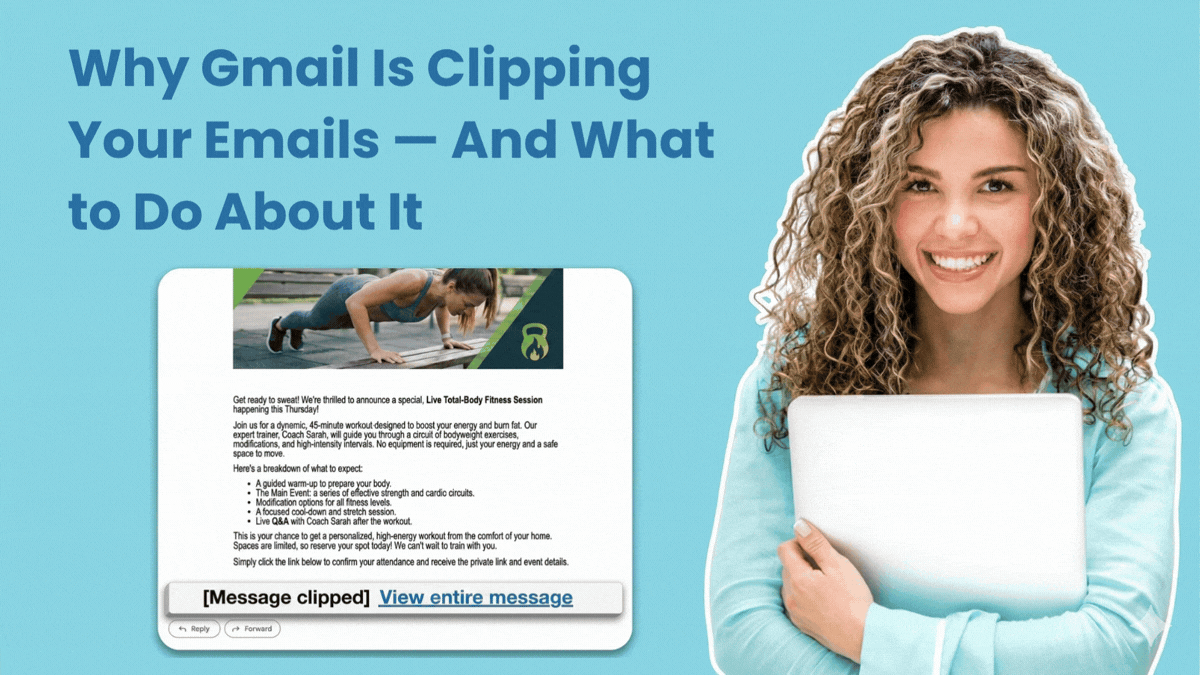
Your email looked great in the editor. You hit send. But somewhere between your drafts folder and your subscriber's inbox, part of your message just... disappeared.
That's Gmail clipping. If your open rates have ever come in lower than expected, Gmail clipping could be a factor — with no indication it was happening.
What is Gmail clipping?
Gmail automatically hides any part of an email that exceeds 102 KB in size. When that happens, subscribers see a "Message clipped [View entire message]" link where the rest of your email content should be. Most readers don't click it. They assume the email just ended.
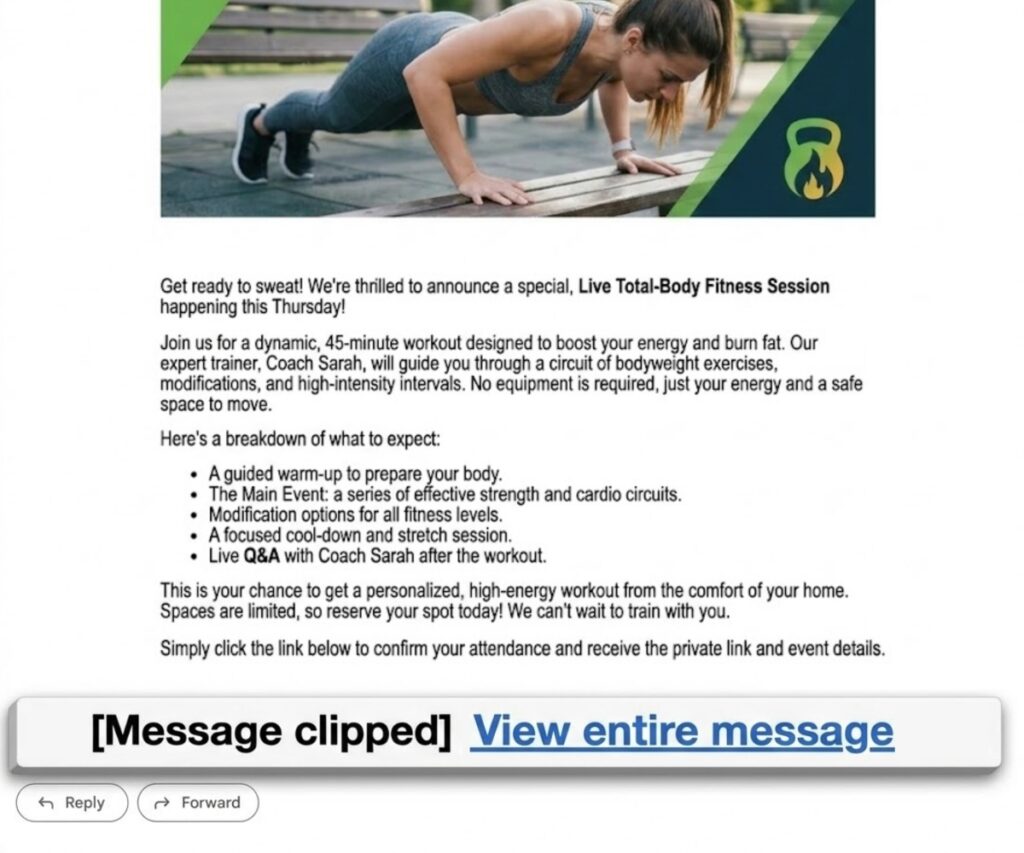
That's the Gmail clipping limit: 102 KB.
It's not a lot of room if you're sending long-form newsletters, promotional emails with multiple images, or heavily formatted messages with lots of buttons and styled sections.
Gmail Clipping Is Quietly Hurting Your Open Rates
The content Gmail clips often includes your email tracking pixel.
Most tracking pixels are located at the bottom of an email. If Gmail cuts your message before reaching that point, the open never gets recorded. So an email that a subscriber actually read shows up in your stats as if it never happened.
So when you're trying to figure out why your open rates seem inconsistent, or why a campaign you felt good about didn't perform the way you expected, Gmail clipping emails could be the reason. Not your subject line. Not your timing. Not your copy. Just a file size problem you had no visibility into.
Why is Gmail clipping my messages?
The short answer: your email is too large.
A few things that push message size up faster than most people expect:
- Multiple images — especially high-resolution ones not optimized for email
- Heavy formatting — lots of fonts, colors, custom styles, and spacing rules
- Many links and buttons — each adds code to the message
- Inline CSS — email clients require styles to be written directly into the HTML, which adds bulk
- Long content — newsletters with multiple sections, product roundups, and detailed updates
You don't have to be sending a novel. A standard-looking email with a hero image, a few product sections, and some formatted text can creep toward 102 KB faster than you'd think.
How to avoid Gmail clipping
There are a few practical things you can do to keep your emails under Gmail's threshold:
1. Optimize your images
Compress images before uploading them. A 2 MB photo scaled down for email doesn't need to carry all that original data with it.
AWeber will automatically optimize images when you upload them, so you're not manually compressing files before every send.
2. Simplify your formatting
The more custom styling you apply, the heavier your email gets. Consistent fonts, limited color variations, and clean layouts keep file size down without sacrificing design.
3. Send traffic to a blog for longer content
If you're writing a 3,000-word newsletter, consider linking to the full version on your blog.
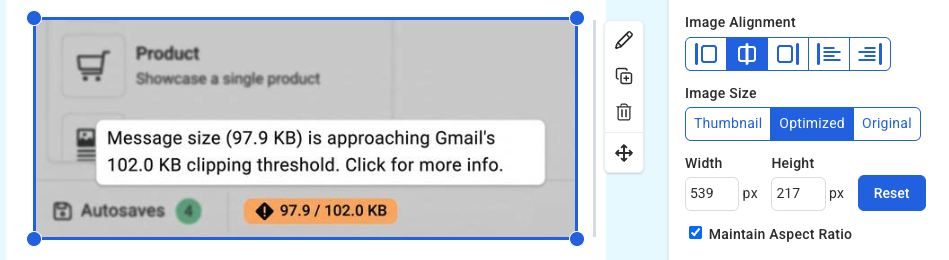
4. Check your size before you send
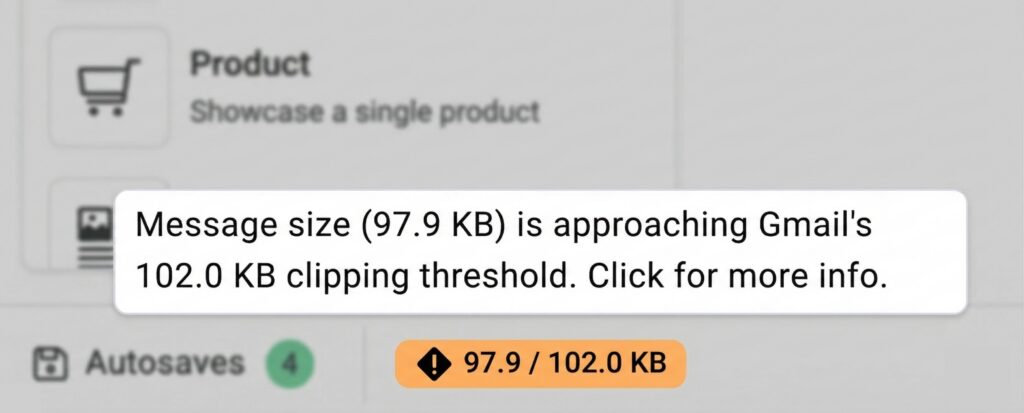
AWeber shows a live size indicator in the message editor footer as you write. If your email approaches Gmail's 102 KB threshold, you'll see a warning so you can trim before you send.
Don’t let Gmail clip your next email
AWeber's Gmail clipping indicator is built into every account. Now you can keep an eye on the size indicator in the message editor next time you're writing a longer email.
Don't have an AWeber account? Sign up for a free 14-day trial and never have Gmail clip your emails again.
The post Why Gmail Is Clipping Your Emails — And What to Do About It appeared first on AWeber.
from AWeber https://ift.tt/SwgdyDt
via IFTTT

No comments:
Post a Comment