Wednesday, 2 May 2018

This Egyptian matchmaking app is made for the conservative Arab world


Egyptian matchmaking startup Harmonica has raised $150,000 from the 23rd batch of the Silicon Valley global accelerator, 500 Startups. Founded by Sameh Saleh, Tamer Mohamed, Shaymaa Aly, and Aly Khaled last year, Harmonica has developed an Arabic-only app that aims to help people find their life partner. “We are over 350 million people in the Arab world and no one in the region in the recent past has tried to use technology to solve one of the biggest problems; matchmaking. We are trying to do that with Harmonica,” Sameh Saleh, co-founder and CEO of Harmonica, a veteran startup founder, told me. I gave…

This story continues at The Next Web

from Social Media – The Next Web https://ift.tt/2jlotzR
via IFTTT

Tuesday, 1 May 2018

Don’t Crash and Burn! Here Are 3 Ways to Test Your Emails before Hitting ‘Send’

Remember that cringe-worthy moment when Steve Harvey read the wrong name for the winner of Miss Universe?

via GIPHY
via GIPHY

Don’t be like Steve. Avoid mistakes in front of a large audience by doing a test run.

Before mailing a message to your list, "test" it by following the tips below. They'll help you dodge unnecessary mistakes, which can make you look unprofessional and sloppy. After all, one bad experience may be enough to turn a subscriber away for good.

(And if you do accidentally pull a Steve Harvey and mess up? Here's how to send an apology email.)

Two types of mistakes

There are two types of mistakes we see in emails.

  1. Human errors:  missing words, typos, wrong dates, broken links, or outdated info 
  2. Display errors: differences in message appearance across email clients
Luckily, both types can be avoided.

How to avoid human errors

Let’s say you send an email promoting your new product.

The open rate is amazing: More than 60% of your subscribers opened the email!

The click-through rate is far above what you expected: More than 30% of people who opened the link clicked through to see your product!

You start celebrating . . . until replies from your subscribers start rolling in. 

“The link doesn’t work.”

“Bad link.”

“You included the wrong link.”

“I can’t find the landing page!”

“I wanted to buy it, but when I clicked, it showed an error message.”

You forgot to update your email with the new product link. 

You quickly send out another email with the correct link. By now, though, you’ve probably lost a large portion of subscribers who clicked through on your first email. Once the link didn’t work, they moved on, taking their potential sale with them.

Chances are, they may not come back.

We wish this was a fake scenario, but we see it happen all the time. In fact, here are a handful we've received over the past few weeks.


wrong link subject line j crew mistake email west elm mistake subject line That's why we have a pre-flight checklist at AWeber. Make sure you run through it before you hit send. It's an additional step, but the payoff is huge to avoid mistakes like these.  (Sign up for a FREE 30-day trial with AWeber. You can test out our easy-to-use drag-and-drop message editor and first-class deliverability.)

You pre-flight checklist

  • Are there any typos or missing words?
    • Read the text in reverse — from end to beginning — to catch typos. It won't make any sense, but that's the point! It forces you to concentrate on every word instead of skimming through the sentences.
    • Walk away from your email for an hour or two. When you come back, you will see your content with "fresh eyes."
    • Don't have time to walk away for an hour or more? Read it aloud.
    • Print it out! It's easier to catch mistakes when the words are physically in front of you as opposed to on a screen.
  • Is your grammar and punctuation correct?
    • Use a free tool — like Grammarly — to check your syntax.
    • Check every single period, comma, or punctuation mark.
    • Read each sentence slowly and carefully on its own. It's simple: Turn the text into individual sentences by pressing the return key after every period. (If you're working on a printout, put another piece of paper over the following sentence.) Then, read the sentence all by itself — looking for errors.
  • Do all the links work and take subscribers to the correct page?
    • Click every single link.
    • Double check tracking codes are in place if you want to track engagement through your links.
  • Did you include alt-text for your images?
    • Alternative text appears in the place of an image. Many email services will disable images in messages, and some users turn them off all together. Alt-text allows the user to understand what was meant to be there. It's also helpful for any of your subscribers that may be visually impaired.
  • Is the content clear and easily understood?
    • Send a test email to a couple people you trust and who aren’t afraid to give you an honest critique. They offer a fresh pair of eyes that may catch something you didn’t.
    • Does something need to be explained in layman's terms?
    • Make sure there is one clear call-to-action that the reader should take (whether it takes them to a purchasing page, a blog post, a registration page, etc).
Not even sure what to write in your emails? No problem. This is one of the most common problems we come across among email marketers. That's why we put together this FREE What to Write Course. Sign up, and get 45+ downloadable content templates to get you started.

How to avoid display errors

In a perfect world, all email services would display emails the same way. There would be no default setting to block images, or funky changes to the color of your text. You wouldn't have to worry about your email content getting clipped (we’re looking at you, Hotmail and Gmail). But email services don’t display all emails the same way. ☹️ As a result, we must make sure our emails display correctly for all of our subscribers — regardless of where they choose to host their inbox. The best way to do so? By testing them first.

Test your emails before sending

Previewing your emails before sending them to your list allows you to view your email from your subscriber’s perspective: in an inbox similar to theirs from your desktop or mobile device. However, simply sending a test version of an email to yourself and viewing it in your favorite email account won’t cut it. Why’s that? Because different email clients render (a.k.a. display) emails differently. Which means if you only view your email in one email client before sending, you don’t know how that email will display for subscribers that open it in a different email client. For example, if you view an email on your iPhone with Yahoo Mail app and view it again on your Mac with Apple Mail, you’ll probably notice some rendering differences. If an email hasn’t been tested before being sent, those rendering differences may translate to a cut-off image, misplaced text or worse. And that’s a big turnoff for your subscribers. How can you avoid rendering issues? Here are two email testing methods I recommend:

1. Create different email addresses and send emails to yourself.

Managing a variety of email addresses may not sound appealing, but it’s a good (and free!) way to check how your subscribers will see your emails in their inbox. When using this method to test your emails, it’s important to view your emails in a variety of email clients. Because as I mentioned before, emails render differently depending on where they’re opened — whether that’s with Gmail or Yahoo, on an iPhone or Android, or in a web browser or desktop application. There are an overwhelming number of email testing scenarios. An email viewed on an iPhone with the Yahoo app. An email viewed on a PC with Outlook. Viewed in a web browser with Gmail. And on and on it goes. Managing all those accounts and apps will become unwieldy fast. And who has time for that? To avoid this time-consuming issue, you might want to focus your testing on the most-used email clients. Although you won’t be previewing your emails for every possible email viewing scenario, you’ll (most likely) test for the majority while avoiding killing your time with testing. Which email clients are most popular? Here are the top 10 as of March 2018:
  1. Apple iPhone (28%)
  2. Gmail (22%)
  3. Apple iPad (10%)
  4. Apple Mail (8%)
  5. Outlook (7%)
  6. Samsung Mail (4%)
  7. Outlook.com (4%)
  8. Yahoo! Mail (3%)
  9. Google Android (3%)
  10. Windows Live Mail (1%)
source:http://emailclientmarketshare.com/ Takeaway: Create an email address/account for the top email clients listed above. Fair warning: These stats aren’t necessarily true for your unique email audience. Which means you might be testing for what you think is the majority while it’s actually the minority. You may want to survey your audience to find out what email service they use.

2. Use a third-party tool to test and preview your emails across different clients.

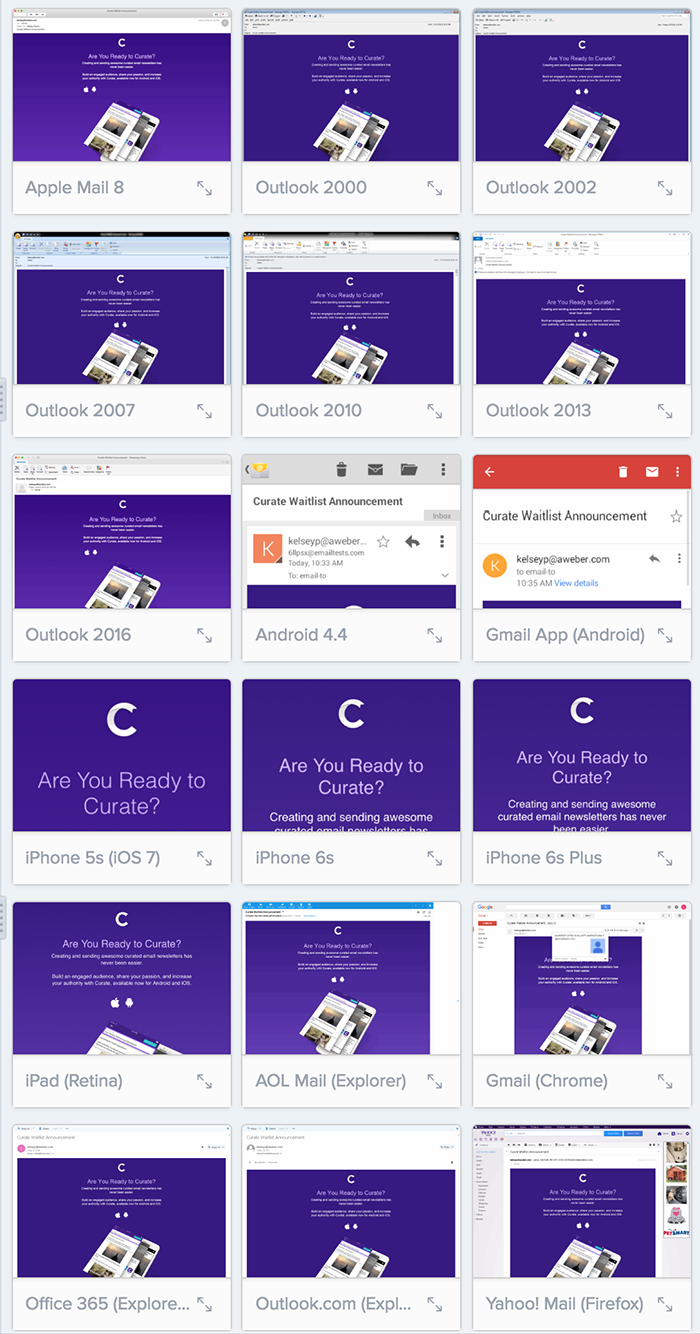
While a great start, the first testing method — creating email addresses for the top email clients — can be inaccurate if you send a ton of email. And although it saves you a bit of time, it's still extra work for you. You can also try a paid email testing service. With a testing service, you can see at a glance how your email will render across numerous email clients and devices all at once. At AWeber, we use Litmus to test our emails. In the below screenshot, you can see how Litmus helps us preview our emails on multiple clients in minutes. (In this instance, we were previewing an email for our customers to promote our new app, Curate.) litmus-emailclients Although Litmus is a good fit for us, you might like another service better like Email on Acid and Previewmyemail. Want an email service provider that can help you send awesome emails? Try a free 30-day trial with AWeber today. Our drag-and-drop message editor is easy-to-use and our deliverability is the best in the industry. (That means your emails make it into your subscribers' inbox, not their spam folders.)  
The post Don’t Crash and Burn! Here Are 3 Ways to Test Your Emails before Hitting ‘Send’ appeared first on Email Marketing Tips.


from Email Marketing Tips https://ift.tt/1XX4A0e
via IFTTT

How to Create a Hashtag That Will Actually Get Used

Power Tools: Small Businesses Share What Features Worked Best For Them

Monday, 30 April 2018

Twitter also sold data to Cambridge Analytica researcher Aleksandr Kogan


Everyone who didn’t sell data to Cambridge Analytica or Aleksandr Kogan please take one step forward. Not so fast @Jack. Twitter, it turns out, also sold data to the former Cambridge Analytica researcher who tricked Facebook users into helping him digitally gerrymander the 2016 US presidential election. According to The Telegraph, Dr. Aleksandr Kogan, the mind behind the personality quiz that Cambridge Analytica used to glean personal data from more than 80 million people, bought data from Twitter in 2015. Kogan, of course, denies the Twitter data had anything to do with his work for Cambridge Analytica leading up to…

This story continues at The Next Web

Or just read more coverage about: Twitter

from Social Media – The Next Web https://ift.tt/2vZ5pAD
via IFTTT

How to Hire a Social Media Manager: A Recruiter’s Guide

Saturday, 28 April 2018

6 Myths about the GDPR and Email Marketing Debunked

The General Data Protection Regulation (GDPR) goes into effect on May 25, 2018. Thousands of sources have published their "expert" advice about the law and how it applies to email marketing over the past several months. But here's the thing: Much of their advice is wrong or misleading — and it's causing a lot of misunderstanding, confusion and fear among small businesses and entrepreneurs around the globe. So, we decided to set the record straight. We’ve already covered the steps you can take to help prepare for the GDPR. (Great news! If you're an AWeber customer, you're probably already doing a lot of those things.) In this post, however, we'll dispel some of the most common myths about the GDPR and email marketing. Use this information so you can confidently move forward. Disclaimer: This blog post is for informational purposes only, and you should not consider it legal advice. We recommend that you seek legal and other professional counsel to determine exactly how the GDPR might apply to you.

Myth #1: “I need to send a re-engagement email to all of my existing subscribers to reconfirm consent.”

One myth we see everywhere is the idea that you must have all of your subscribers reconfirm their consent in order to be compliant with the GDPR. This is false. Sort of. Here’s the deal: It all depends on whether you can prove consent from your subscribers, or you have other lawful grounds for processing data, according to the GDPR. If you are relying on consent to determine lawfulness, ask yourself these three questions:
  1. Did my subscribers opt in to my list, and can I prove it?
  2. On my sign up form, did I clearly explain how I'd use subscribers' data and what content I'd send them? Can I prove it?
  3. Can my subscribers unsubscribe from my list as easily as they subscribed?
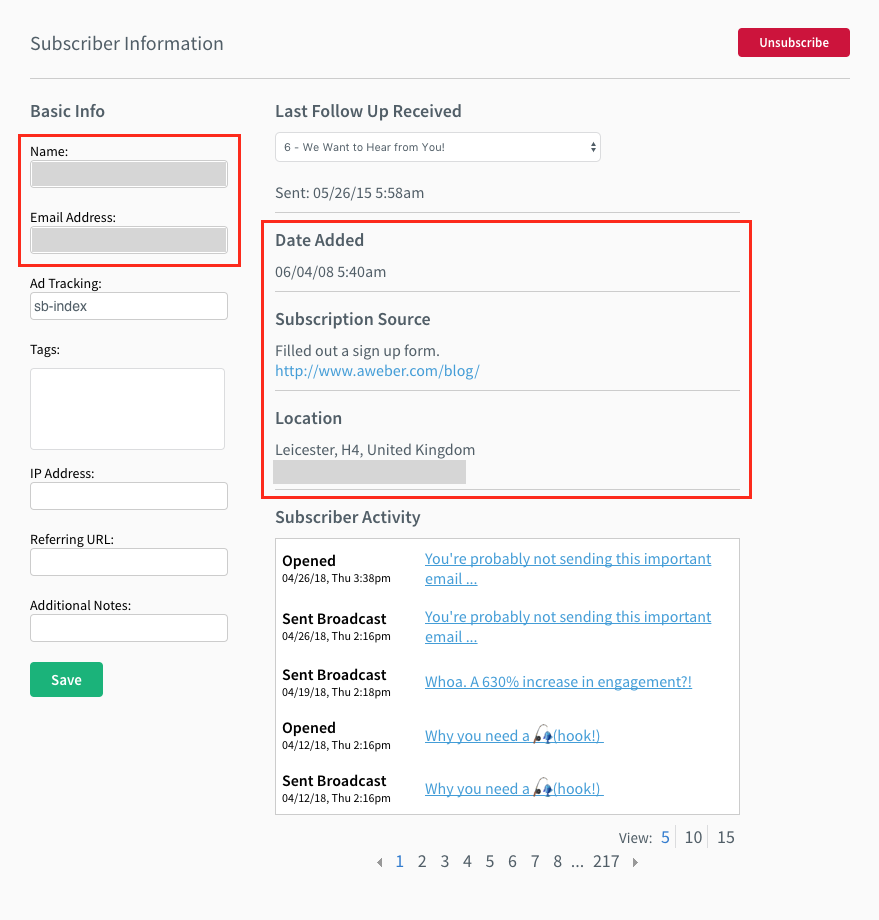
To prove you received consent, you should use the following three data points:
  1. The date and time the subscriber opted in
  2. The source of the opt-in (e.g., www.mywebsite.com, “Added via API”)
  3. A screenshot of the data collection mechanism (i.e., your signup form or landing page)
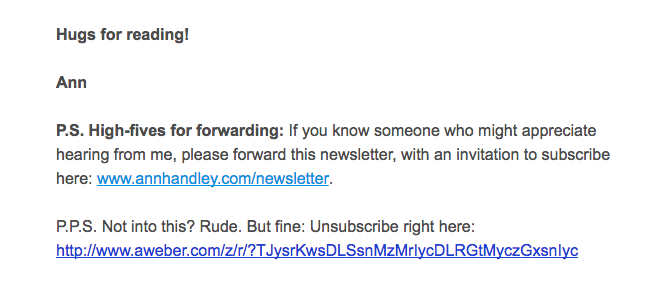
You can easily find the date, time, and source information in your subscriber details within your AWeber account. Just look for the date and time when they opted in as well as the source of signup. To prove you clearly explained how you'd be using data and what content you'd send to subscribers, save a copy or screenshot of the signup form you used to collect their personal data. Now, let’s say you imported your list from another email service provider (ESP). In this case, you won't have the source information within your AWeber subscriber details. However, you’re confident your list subscribed in a compliant way through your old ESP. If you don’t have this information available in your previous ESP, you probably can’t prove consent and should consider sending a re-engagement email. Finally, let’s quickly touch on the third question: “Can my subscribers unsubscribe from my list as easily as they subscribed?” The short answer: If you’re using AWeber, your subscribers already have the ability to unsubscribe on their own using the “Unsubscribe” link in the footer of all your emails. You can also make the unsubscribe option more obvious by adding it within the text of your email messages. Here’s an example from Ann Handley's newsletter, which I shared in my previous post with her bi-weekly:

“I can prove consent. Hooray!” 👍

If you answered “yes” to all three of the questions I mentioned previously, thumbs up, you’re able to prove consent and you can continue to engage your subscribers.

“I can’t prove consent. Bummer.” 👎

If you answered “no” to any of the three questions, and you can’t prove consent otherwise, then you should probably send a re-engagement email or delete those subscribers from your email list. Here’s a sample re-engagement email you can send your subscribers. You can use AWeber’s Click Automations to tag subscribers who click the link to confirm their consent.
Subject: Still interested in receiving emails from me? Hi there! I hope you’ve been enjoying the content I have sent you, like {Insert all of the types of content you send (e.g., newsletters, sales, product info, etc.)}. If you’d like to continue receiving emails from me, click the link below: {Keep me on the list - LINK} By confirming your subscription, we’ll continue sending you:
  • {Insert a list all of the things you plan to send to subscribers on this list}
Not interested anymore? That’s alright. If you don’t click the link above, we’ll take you off our list and stop emailing you. You can also unsubscribe here. (Note: Hyperlink the word "here" to the personalization token {!remove_web} in your email message.) Thanks, and have a great day! {Your Name}
In addition to confirming consent, you can also use your re-engagement email to create better segments of your subscribers, using AWeber’s Click Automations feature. For example, let’s say you send a newsletter as well as product information to your subscribers. You can add multiple links within your re-engagement email to allow them to opt in to receive different types of content. When subscribers click any of the links, you can tag them appropriately and send them more targeted emails. Here’s a sample re-engagement email that has multiple options:
Subject: Still interested in receiving emails from me? Hi there! I hope you’ve been enjoying the content I’ve been sending you, like {Insert all of the types of content you send (e.g., newsletters, sales, product info, etc.)}. If you’d like to continue receiving emails from me, click one of the links below:
  • Keep sending me the newsletter {tag with gdpr-newsletter}
  • Keep sending me product information {tag with gdpr-productinfo}
  • Keep sending me both {tag with gdpr-newsletter and gdpr-productinfo}
Not interested anymore? That’s alright. If you don’t click any of the links above, we’ll take you off our list and stop emailing you. You can also unsubscribe here. (Note: Hyperlink the word "here" to the personalization token {!remove_web} in your email message.) Thanks, and have a great day! {Your Name}
It's a best practice to generally wait about seven days after sending a re-engagement email before deleting any subscribers who do not click the link(s) to reconfirm their consent.

Myth #2: “I need to add GDPR checkboxes to all of my signup forms.”

Another rumor floating around is that you need to add checkboxes to your signup forms in order to be GDPR compliant. Some are even calling these “GDPR-friendly signup forms.” This is false. Checkboxes are not required, and are completely optional. Nowhere in the GDPR does it state that you need to add checkboxes to your signup forms. What it does say, however, is that you need to clearly communicate how you will be processing subscribers’ personal data, whether using a descriptive sentence or two, or using a checkbox, if you so choose. One reason to go the sentence-route? Unnecessarily adding multiple checkboxes to your forms may introduce the possibility of click fatigue and lower opt-in rates. Here’s an example of a signup form that is GDPR compliant and does not include checkboxes: So, when is it appropriate to use checkboxes? The GDPR requires that consent must be freely given by subscribers, and cannot be bundled with unrelated actions. Keeping this in mind, here are two examples where checkboxes are required to be compliant with the GDPR: Example #1 Let’s say you’re a retailer and you want to send marketing emails to your customers after they make a purchase, as well as share their data with other companies within your retail group. Under the GDPR, you cannot bundle their purchase with consent to send marketing emails. Instead, a separate consent should be captured at the point of purchase that is specific to the purpose of sending marketing emails or sharing their data with partner companies. You might decide to use a separate checkbox to capture this secondary consent. Example #2 Let’s say you’re a financial institution and you want to allow third parties to use customers’ payment details for marketing purposes. Under GDPR, this type of processing activity (i.e., the sharing of payment information for marketing purposes) is not necessary for the performance of the contract or agreement with the customer. Consent must be freely given, and if a customer refuses consent, the institution would not be able to deny services or increase fees. That would be a violation of the GDPR. If you would like to share subscribers' data with other parties, you should use a checkbox to allow them to give their consent freely. And keep in mind that these checkboxes cannot be pre-checked.

Myth #3: “I need to use double opt-in to be compliant with the GDPR.”

Double opt-in (a.k.a confirmed opt-in) is when your subscribers sign up for something — like a newsletter — and then they’re asked to also confirm their subscription. Some “experts” are stating that the GDPR requires double opt-in to prove consent. This is incorrect. As I mentioned in myth #1, the GDPR simply requires that you can prove the compliant consent. The act of entering personal information into a signup form and clicking “submit” can be considered an affirmative action, as long as the subscriber was clearly and directly informed of what they are accepting. However, double opt-in is not necessarily a bad thing. There are lots of great reasons to use it, including better subscriber engagement and deliverability. You just don't need to use it to be compliant with the GDPR.

Myth #4: “Subscribers’ personal data thats already in our database isn’t subject to the GDPR.”

This one is closely related to myth #1. The GDPR applies to all personal data — even data that was collected prior to May 25, 2018. If you cannot prove consent for all of your existing subscribers, you should send a re-engagement email to obtain that consent.

Myth #5: “My data is stored with my service provider, so it’s their responsibility to remain compliant with the GDPR, not mine.”

We touched on the relationship between data processors (e.g., AWeber) and data controllers  (i.e., you, the one sending the emails) in our previous GDPR blog post. But let’s dive deeper to dispel this myth. Data processors and data controllers share responsibility for complying with the GDPR requirements. As an AWeber customer, you are still considered the data controller. You maintain control over how you use that data. AWeber is simply processing the data at your request. So, it’s not an option to pass responsibility to a service provider who is processing data on your behalf. We recommend that you seek legal and other professional counsel to determine exactly your role and relationship to the data being processed.

Myth #6: “If I’m not compliant by May 25, I’ll get hit with huge fines.”

Anyone reading the GDPR fine print is likely nervous when they see the hefty fines associated with not being GDPR compliant. (Enough to make your palms sweat!) However, EU officials indicate that fines would likely be a last resort. Here’s what Elizabeth Denham, the U.K.’s information commissioner, had to say in a recent blog post:
“It’s scaremongering to suggest that we’ll be making early examples of organizations for minor infringements or that maximum fines will become the norm,” she said. “The ICO’s commitment to guiding, advising, and educating organisations about how to comply with the law will not change under the GDPR. We have always preferred the carrot to the stick.” “While fines may be the sledgehammer in our toolbox, we have access to lots of other tools that are well-suited to the task at hand and just as effective,” she continued. “The GDPR gives us a suite of sanctions to help organisations comply – warnings, reprimands, corrective orders. While these will not hit organisations in the pocket – their reputations will suffer a significant blow.”
If you’re taking the necessary steps to understand and follow the GDPR regulations and engage in good email marketing best practices, you are on the right path to protecting yourself.

Keep calm and email on

On the surface, the new GDPR may appear scary and ominous, but it’s actually pretty straight forward. And it's a good thing for email marketers, too. It really comes down to doing the right thing with the personal data you collect. Only send emails and information to people who’ve given you permission to do so for the purpose you told them. To learn more about the GDPR, visit www.eugdpr.org. Have questions? Comment below, or contact our team, and we’ll do our best to answer them. Not an AWeber customer? Get the peace of mind of working with a trusted provider. Try AWeber free for 30 days.

The post 6 Myths about the GDPR and Email Marketing Debunked appeared first on Email Marketing Tips.


from Email Marketing Tips https://ift.tt/2HzcQnF
via IFTTT