Showing posts with label AWeber. Show all posts

Wednesday, 14 October 2026

Every Landing Page Comes With a Click-Worthy Social Preview

Social share image for AWeber's social preview blog post

Share a landing page link on social channels or in a text message and those platforms automatically pull a preview. A headline, an image, and a short description of your page.

A blank box or an irrelevant image gets ignored. A preview that shows what’s actually on your page gives people a reason to click.

Every page you publish with the AI Landing Page Builder now gets a custom social share image and preview text built automatically.

What’s in your social preview

Your share image

A 1600x832 image built from your page’s headline, offer, and color palette. That’s the correct size for Facebook, LinkedIn, X, and iMessage. So it displays in full without cropping.

Your page title

A short headline pulled from your page’s content. It’s the first thing people read in the preview before they decide to click.

Your page description

A one or two sentence summary of what’s on your page. Written from the words already there, so the preview matches what people find when they arrive.
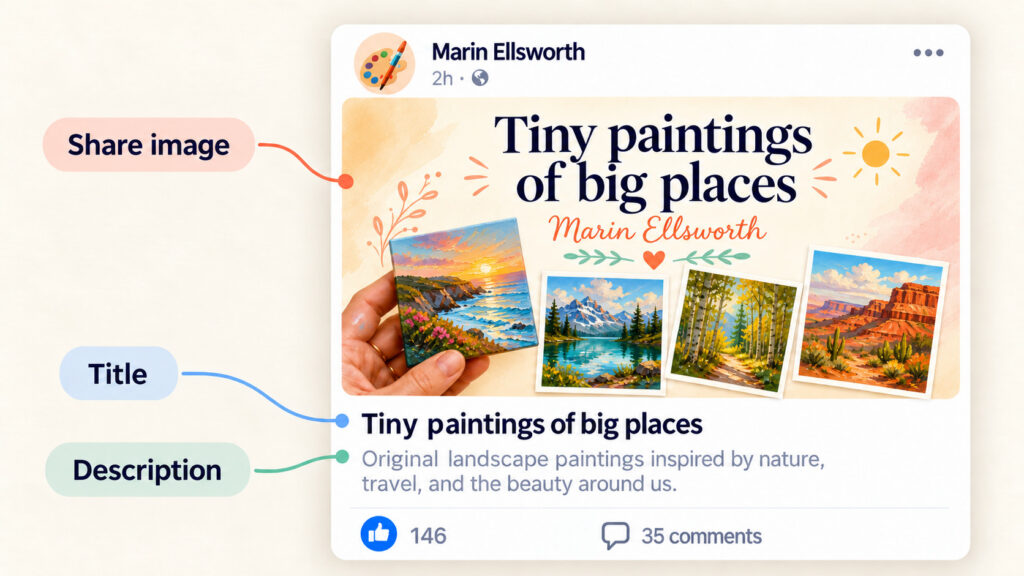
Image showing different elements of a social preview on a landing page

How to review your social preview

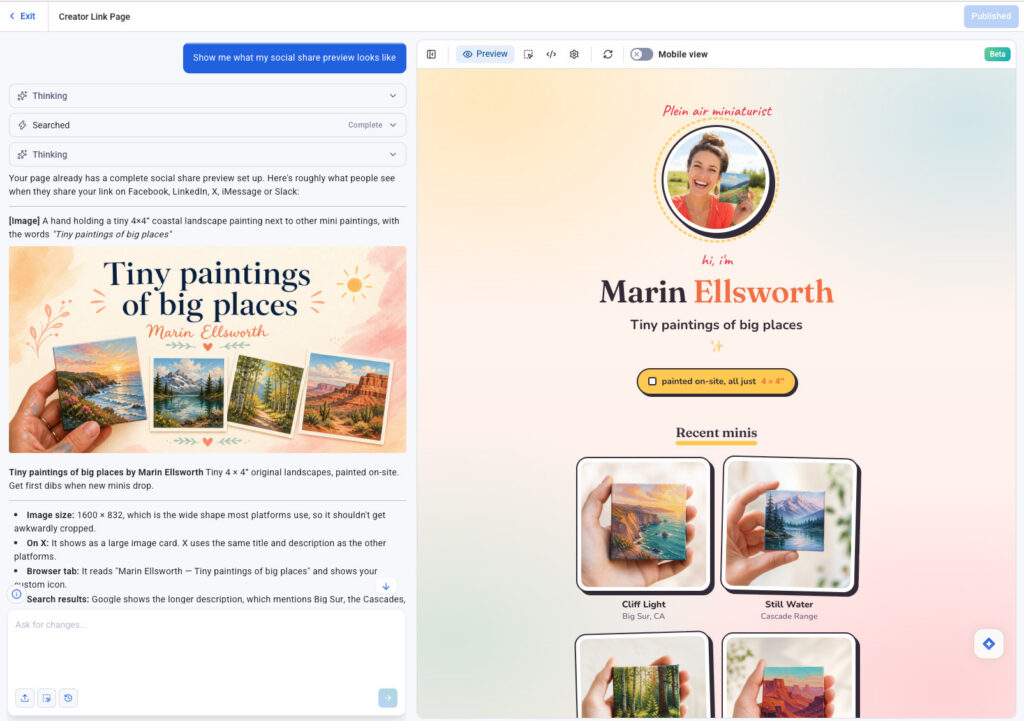
Open the AI Landing Page Builder and ask:

“Show me what my social share preview looks like.”

The builder surfaces the share image, title, and description so you can review everything before it goes live.

After you publish, paste your page URL into a Facebook, LinkedIn, X, Slack or directly into an email message. The preview renders immediately.
AI landing page builder in AWeber, showing how to check the social share preview

How to make changes

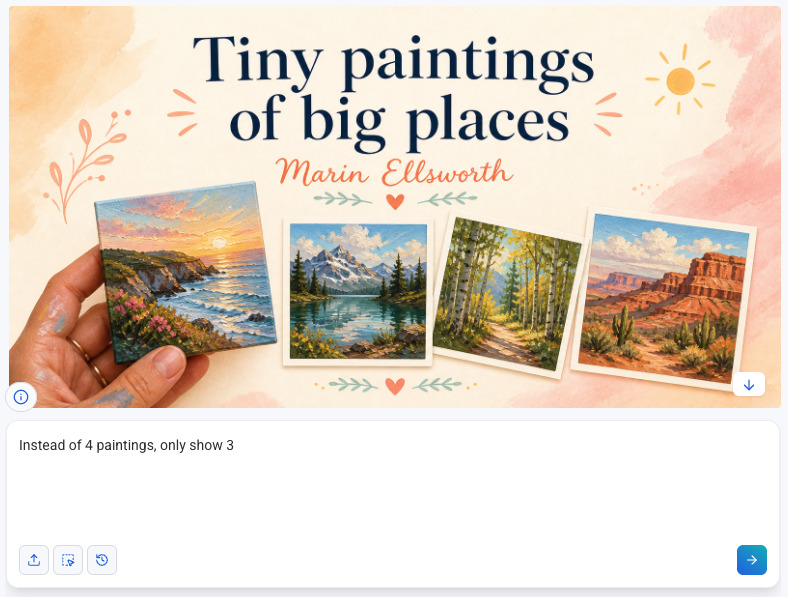
Want to make a small tweak or a complete redesign? Ask for it in the chat:

  • “Rewrite the preview description to focus on the free download.”
  • “Make the share image use a darker background.”
  • “Shorten the page title.”

The builder updates it. Republish and the change is live.
Social share preview before requested changes
Social share preview after requested changes

Frequently asked questions

What size should a social share image be?

The right size is 1600x832 pixels. That’s the format Facebook, LinkedIn, X, and iMessage all use to display link previews without cropping. Every page built with the AI Landing Page Builder uses this size automatically.

What is an Open Graph image?

An Open Graph image is the graphic that appears when you share a link on social media. Platforms like Facebook and LinkedIn read a tag in your page’s code to find it. If that tag isn’t set, the platform guesses, usually pulling a random image from the page or showing nothing. The AI Landing Page Builder sets the Open Graph image for every page you publish.

What is a social share image?

A social share image is the visual that appears in a link preview when you share a URL on social media, in a text message, or over email. It’s the first thing people see before they decide to click. A relevant, well-sized image gets more clicks than a blank or cropped one.

If you built your page with another tool, the Open Graph image may not be set or may be the wrong size. Pages built with AWeber’s AI Landing Page Builder set the image automatically.

Can I use my own image for the social share?

Yes. Ask in the chat: “Include my book cover in the social sharing image.” The builder will incorporate it and rebuild the preview around it.

Share your next page

Build a page with the AI Landing Page Builder, click Publish, and your social preview is already set.

Create your next page

The post Every Landing Page Comes With a Click-Worthy Social Preview appeared first on AWeber.


from AWeber https://ift.tt/8V9hmnE
via IFTTT

Friday, 25 September 2026

Share Your New Landing Page Anywhere in One Click

Share Your New Landing Page Anywhere in One Click

A landing page can't grow your list until people see it. Yours is ready to share before you leave the publish screen.

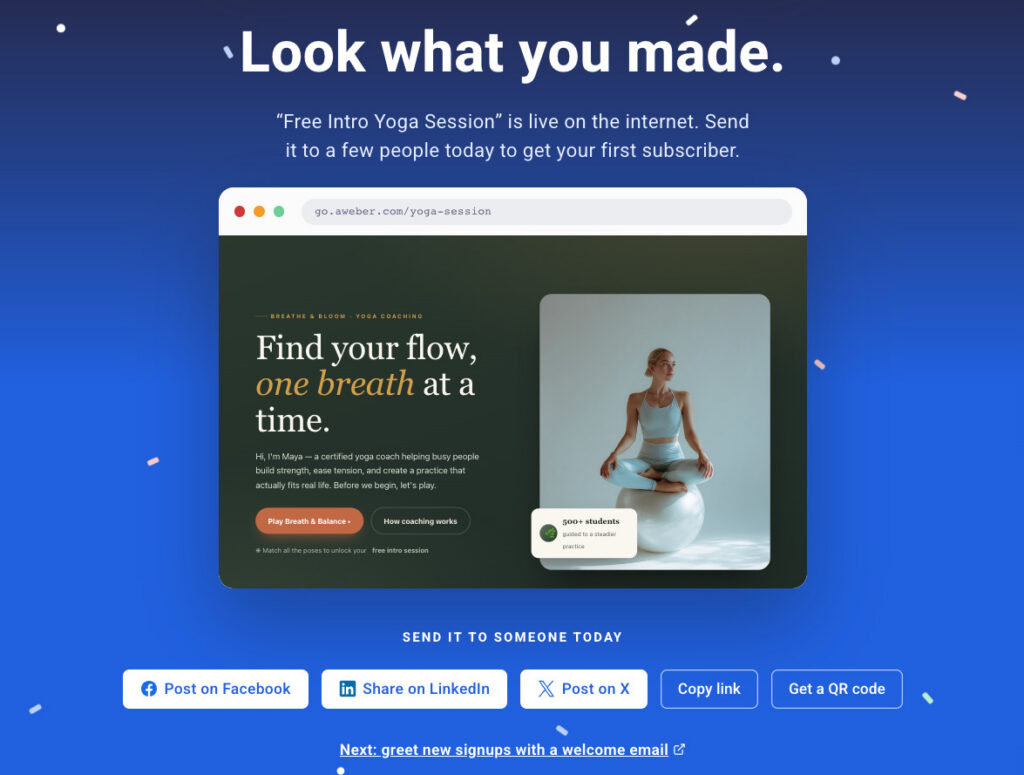
Post it to Facebook, LinkedIn, or X in one click. Or download a QR code for anything you print. Every visitor who signs up on your page joins your email list.

Publish landing page dashboard in AWeber

Post to your socials in one click

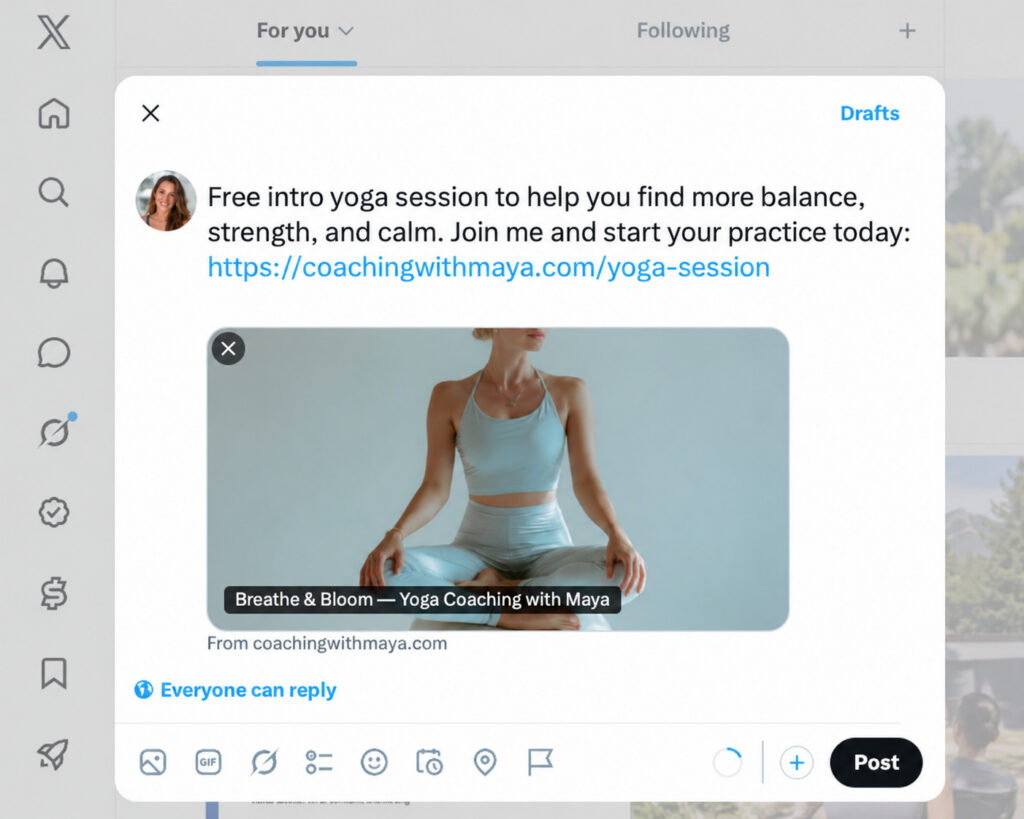
Click Facebook, LinkedIn, X, and the post window opens with your page already attached. Your page image and title show up as a preview, so people see what they'll get before they click. Add a line about your offer and hit post.

The publish screen stays open until you close it. Post to one channel, then the next, and you're on every channel in a few clicks.

Social media post after clicking share landing page

Put your page in print

Click Get a QR code, and a high-resolution PNG of your page's QR code downloads. Anyone who scans it lands right on your page.

Get a QR code CTA in publish landing page dashboard

Put it wherever people see you in person:

  • Flyers and posters for classes, workshops, and events
  • Business cards so every handoff leads to your list
  • Table signs and counters at pop-ups, markets, and storefronts
  • Packaging and receipts so customers can join after they buy
  • The last slide of a talk so your audience can sign up before they leave

Copy link grabs your page URL for your profile bio, a DM, a text, or your email signature. Your page stays one tap away wherever people find you.

Greet every new subscriber

Right below the share buttons, one click opens Workflows in a new tab. Set up a welcome email, and every new subscriber from your posts or QR code hears from you right after they join.

greet new signups with welcome email CTA

Share your new landing page

Sharing is built into every publish, so there's nothing to set up. Build a page with the AI Landing Page Builder, click Publish, and pick where to post it.

The post Share Your New Landing Page Anywhere in One Click appeared first on AWeber.


from AWeber https://ift.tt/fM2FVAx
via IFTTT
Tuesday, 25 August 2026

ChatGPT and Claude Now Analyzes Your Email Automations, Message by Message

ChatGPT and Claude Now Analyzes Your Email Automations, Message by Message

Every automation you've built keeps working long after you've stopped thinking about it. That's the point of automation, but it's also why most people never find out if a workflow is actually converting as well as it could.

AWeber's ChatGPT and Claude plugin now gives you that answer directly. Ask about any automation and get a real analysis back. What's working. What's not. And exactly what to improve. All without opening AWeber.

Know exactly which email to improve

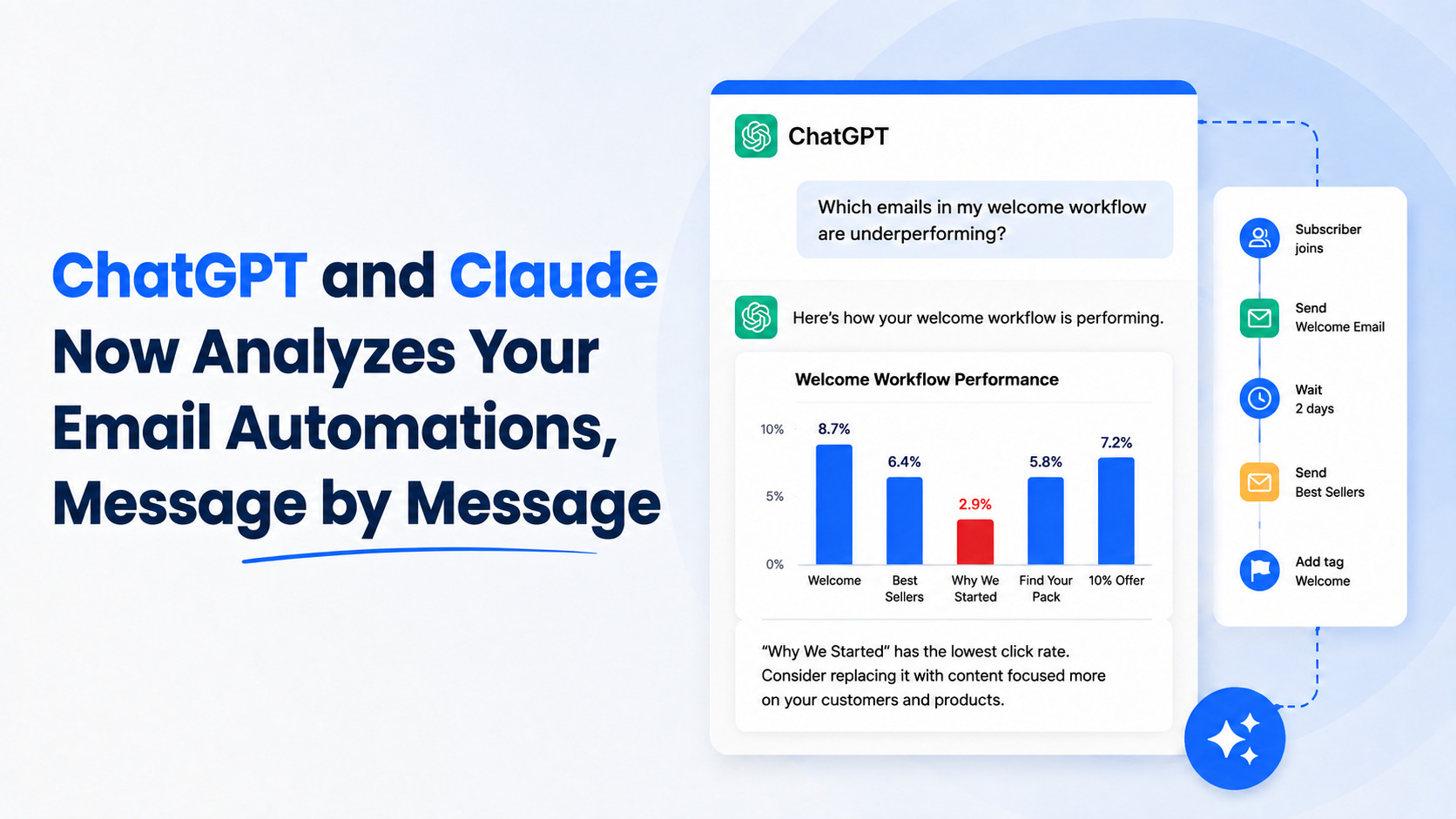
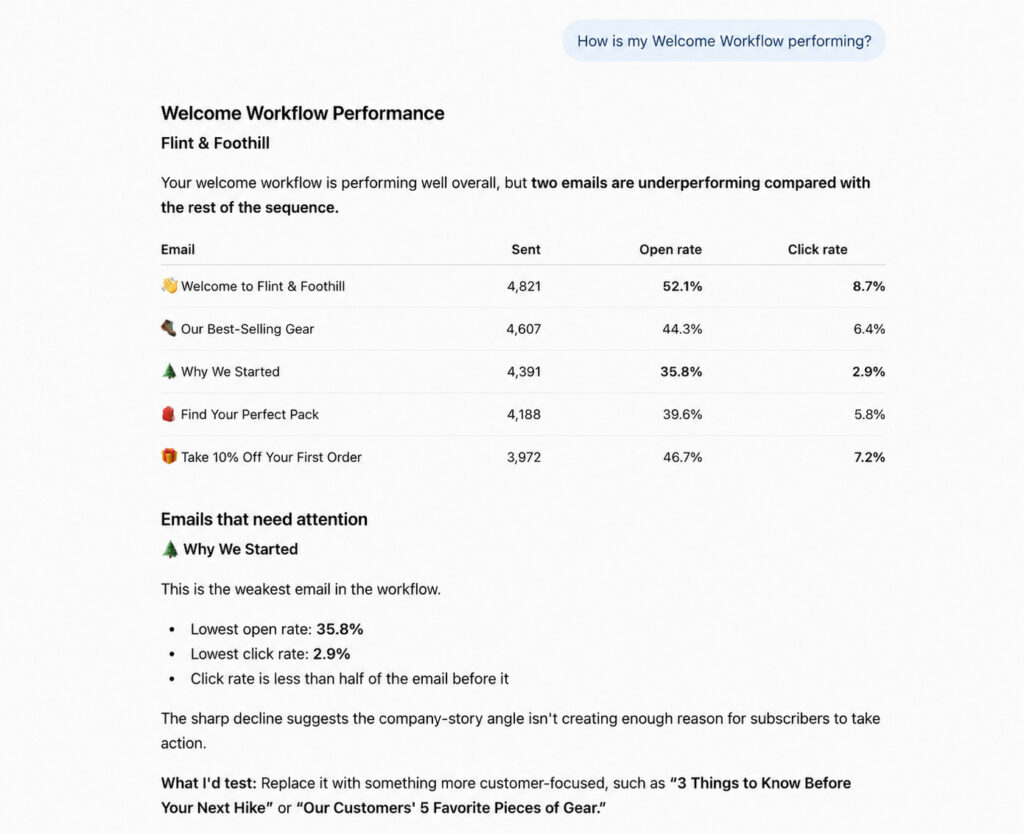
ChatGPT and Claude break down how the automation is performing: what's working, what's not, and exactly where the opportunity is.

Images showing an email automation analysis from ChatGPT

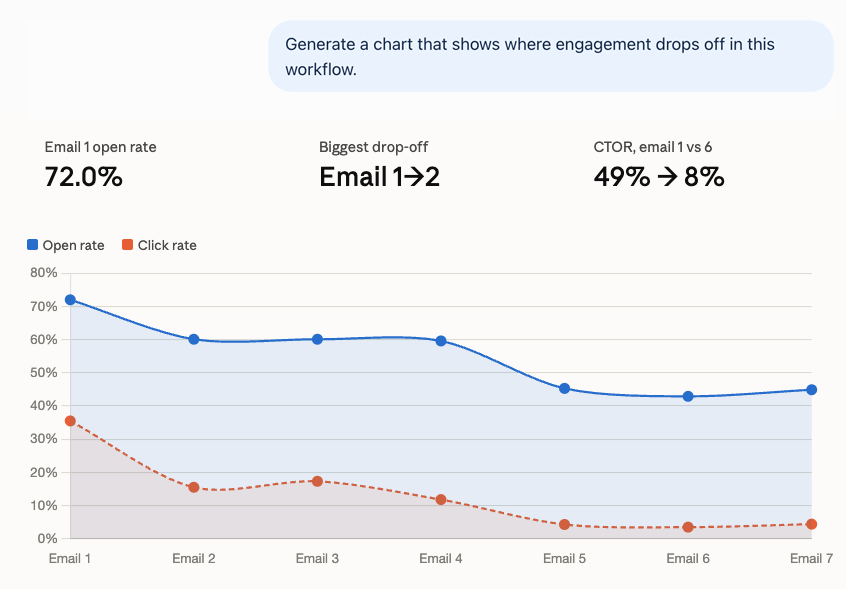
You can ask for an analysis to see the exact step where engagement drops the most. So instead of guessing which email is losing people, you know precisely where it happens.

Graph generated in ChatGPT showing automated email series drop off

Catch list health issues before they spread

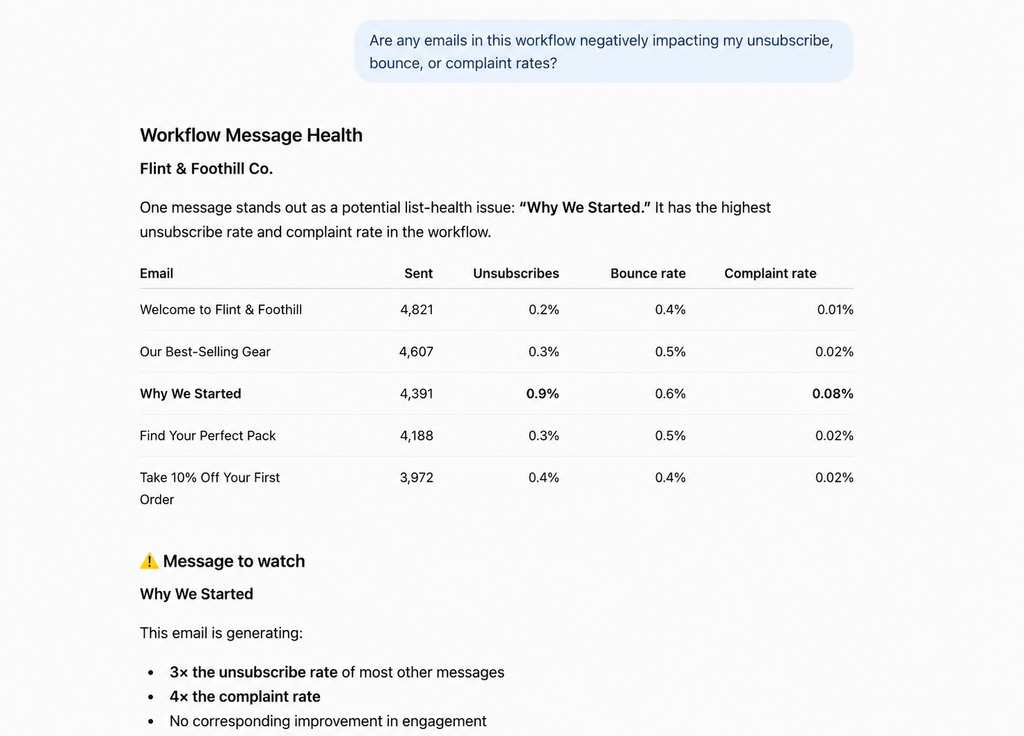
Ask about unsubscribes, bounces, and complaints for any message in the Workflow, and you can catch a message quietly hurting your list before it affects the rest of your sends.

Summary of an automated email campaign showing email health issues such as unsubs, bounce rate, and complaint rate

Find out what your subscribers actually click

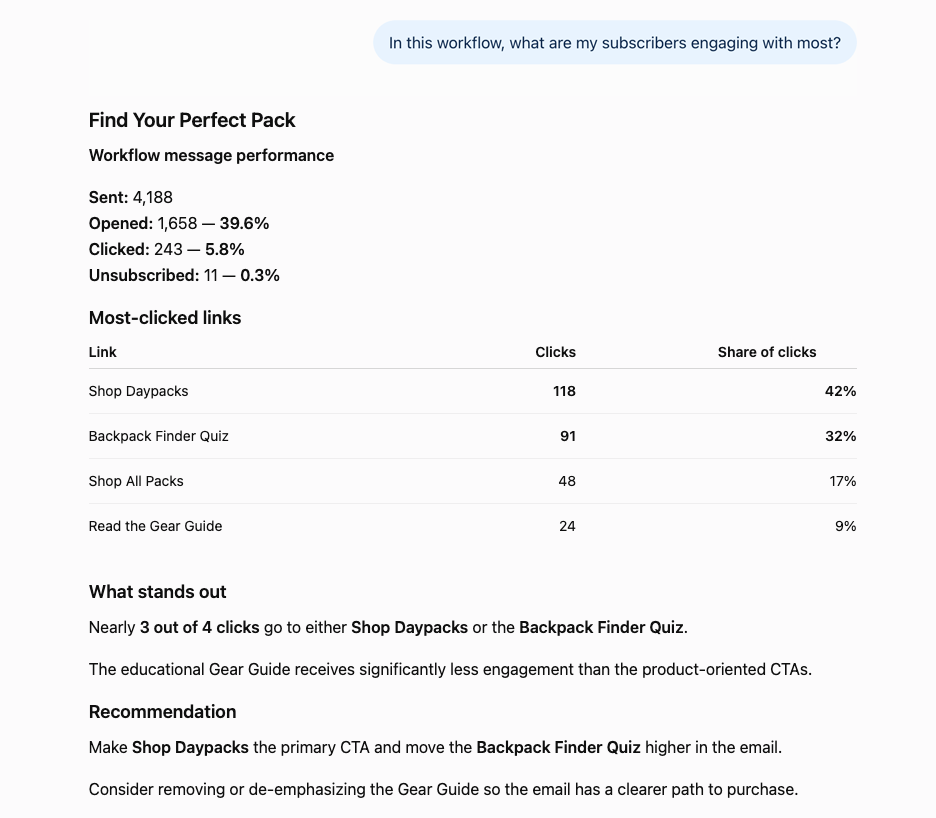
If your automation links to a few different products, offers, or pages, ask which one is getting clicked.

Know what subscribers actually want, so you know what to feature next.

Image of email automation click results shown in ChatGPT

See every Workflow at a glance

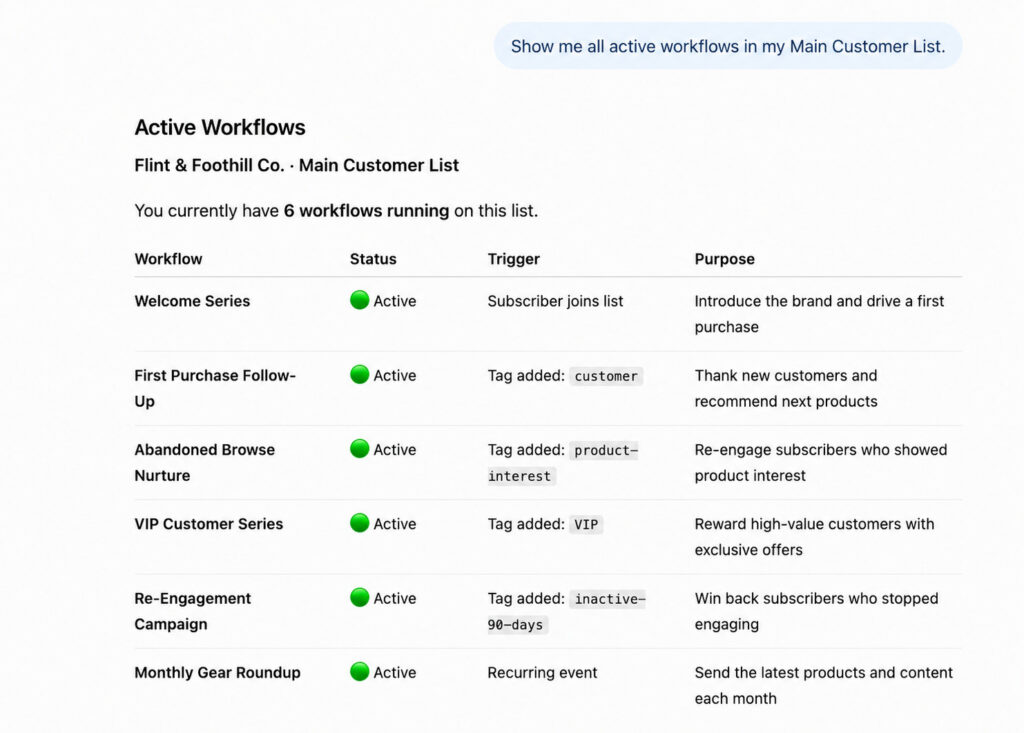
Ask ChatGPT to list every workflow running on a list, and you get the full picture of what's live without opening AWeber to check.

Image showing all email automations in AWeber

See the path every subscriber takes

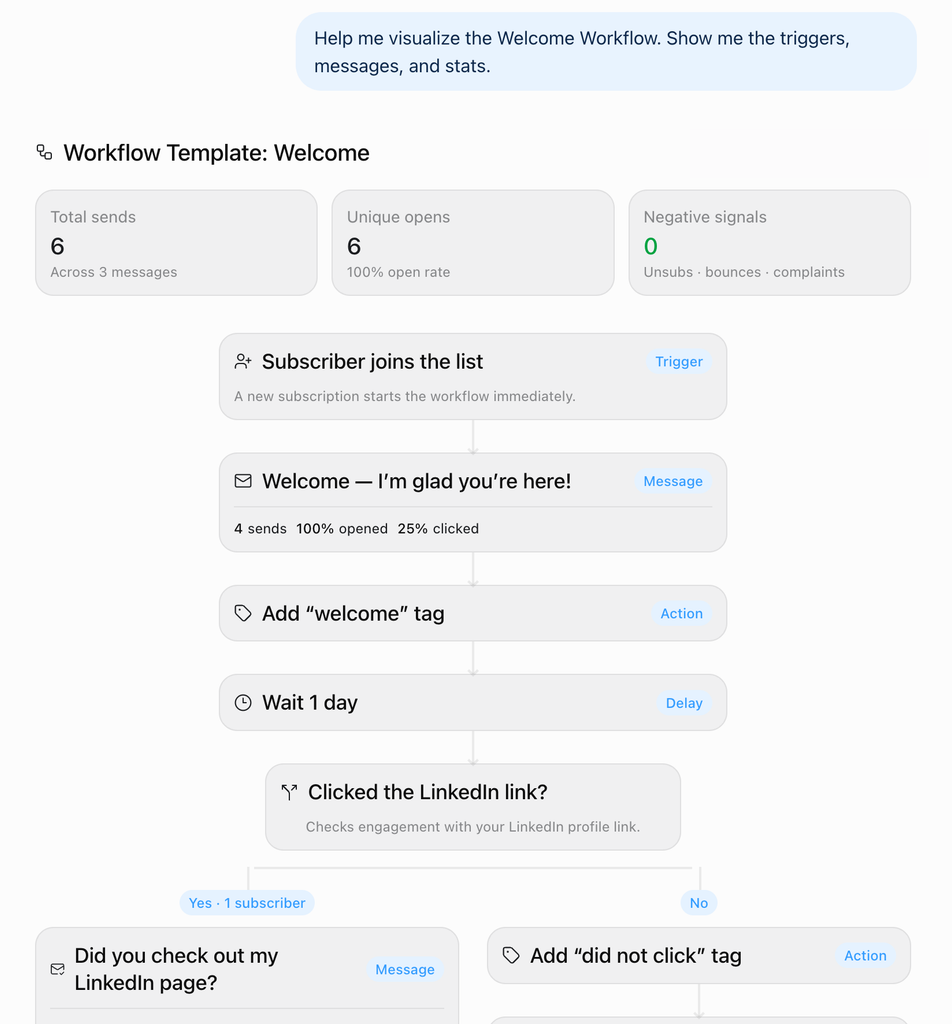
You can ask ChatGPT or Claude for visual of your Workflow. It will show every trigger, every branch, every message in order.

Example of an automated email series shown in Claude

Get started

If you're already connected to AWeber's ChatGPT or Claude plugin, there's nothing new to set up. Open ChatGPT or Claude and ask about an automation you're running today.

If you haven't connected yet, search AWeber in ChatGPT's plugin directory, or connect AWeber in Claude.

For more on how the plugin works end to end, see Connecting Your AWeber Account to ChatGPT and Claude.

The post ChatGPT and Claude Now Analyzes Your Email Automations, Message by Message appeared first on AWeber.


from AWeber https://ift.tt/aepBn29
via IFTTT
Tuesday, 18 August 2026

Turn a Goal Into a Landing Page in Minutes with AI Builder

AI landing page builder

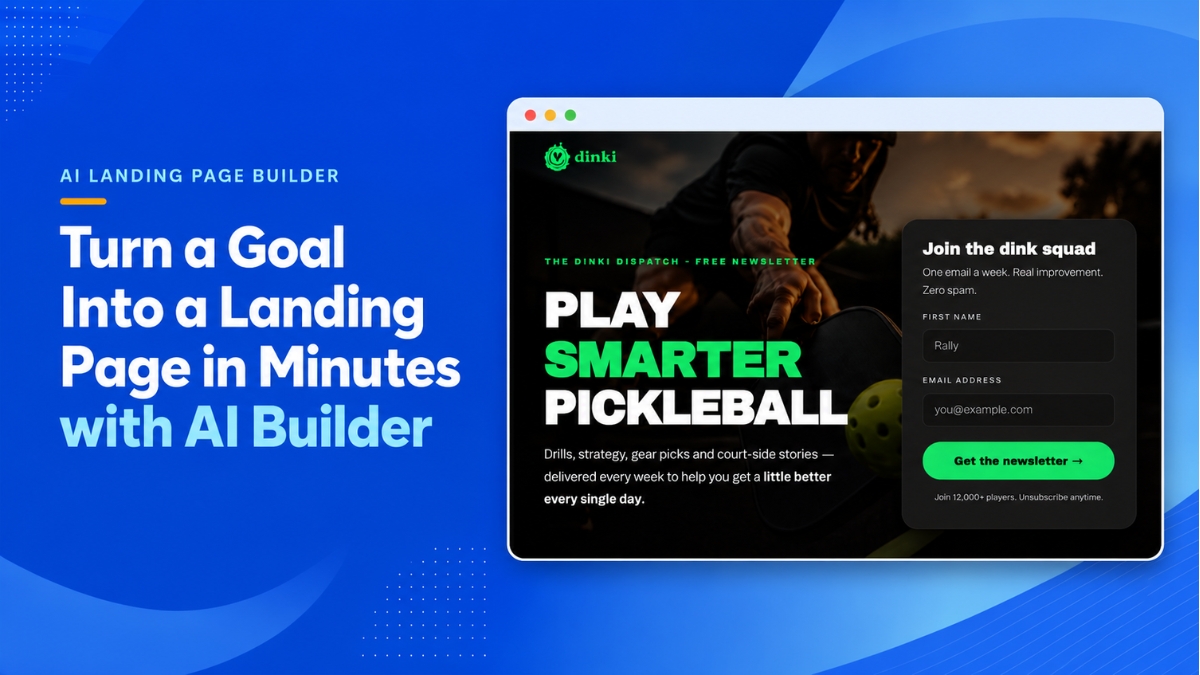
Sell something. Grow your list. Book more clients. Whatever the goal, the AI Landing Page Builder starts there.

Describe it in plain language, and get a full page back: headline, layout, images, copy, all built around what you said.

What people are building with it AI landing pages

1. Grow your email list

Capture signups on a page built around exactly what you're offering.

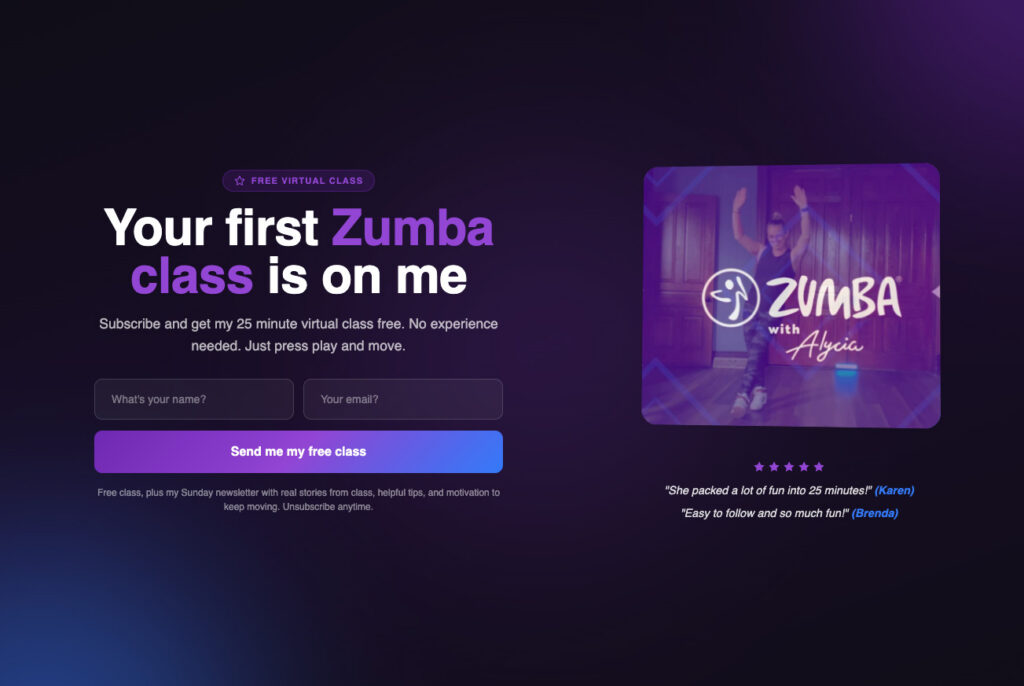
Screenshot landing page example

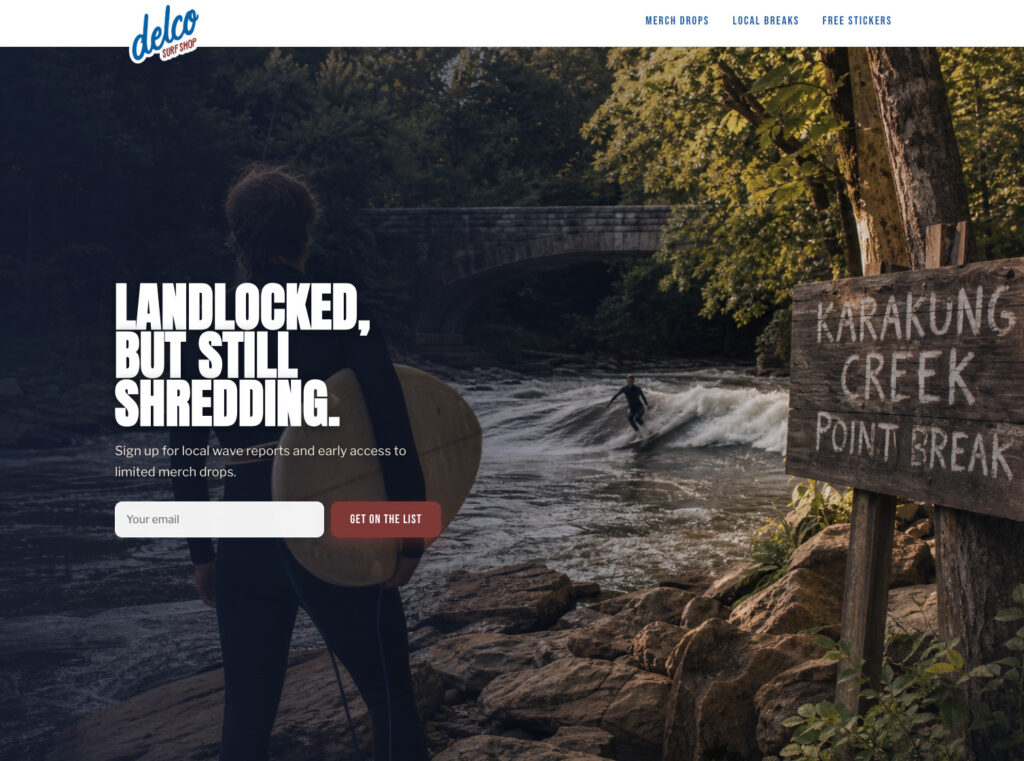
2. Waitlists

A page that captures interest before something's ready to launch.

Screenshot of a waitlist landing page example

3. Event signups

A fitness studio filling a class roster.

Screenshot of a landing page example

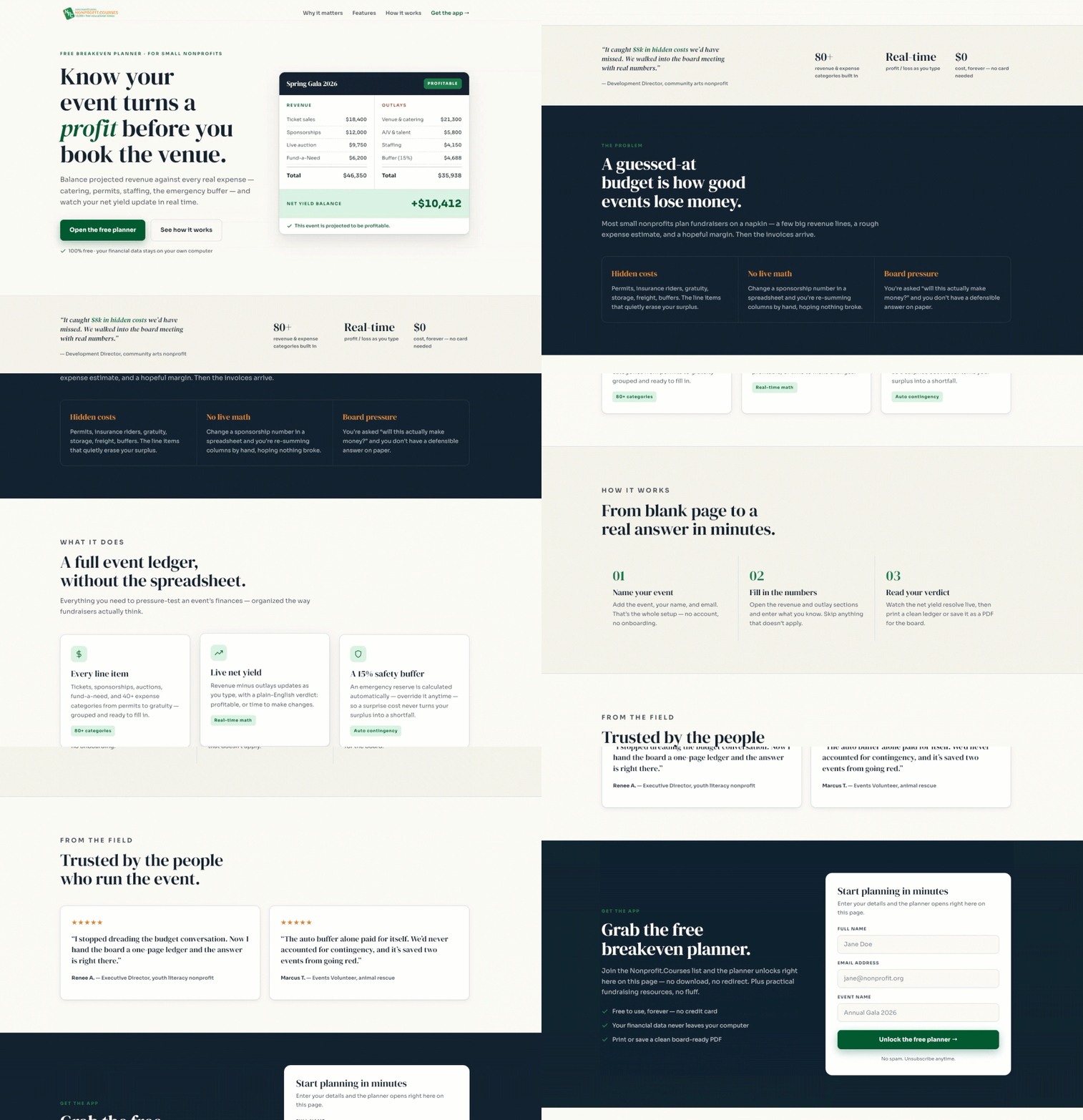
4. Lead magnets that are actually tools

A nonprofit training platform built a breakeven analysis planner, gated behind an email signup, entirely by describing it.

Screenshot of a lead magnet landing page

5. Creator and personal brand pages

A full media kit in one page: bio, booking details, appearance schedule, sponsor stats, and a newsletter signup built right in.

Screenshot of a creator landing page

6. Fundraising

A page built around a specific cause or campaign. One goal, one call to action, one place to give.

GIF of a fundraising landing page example

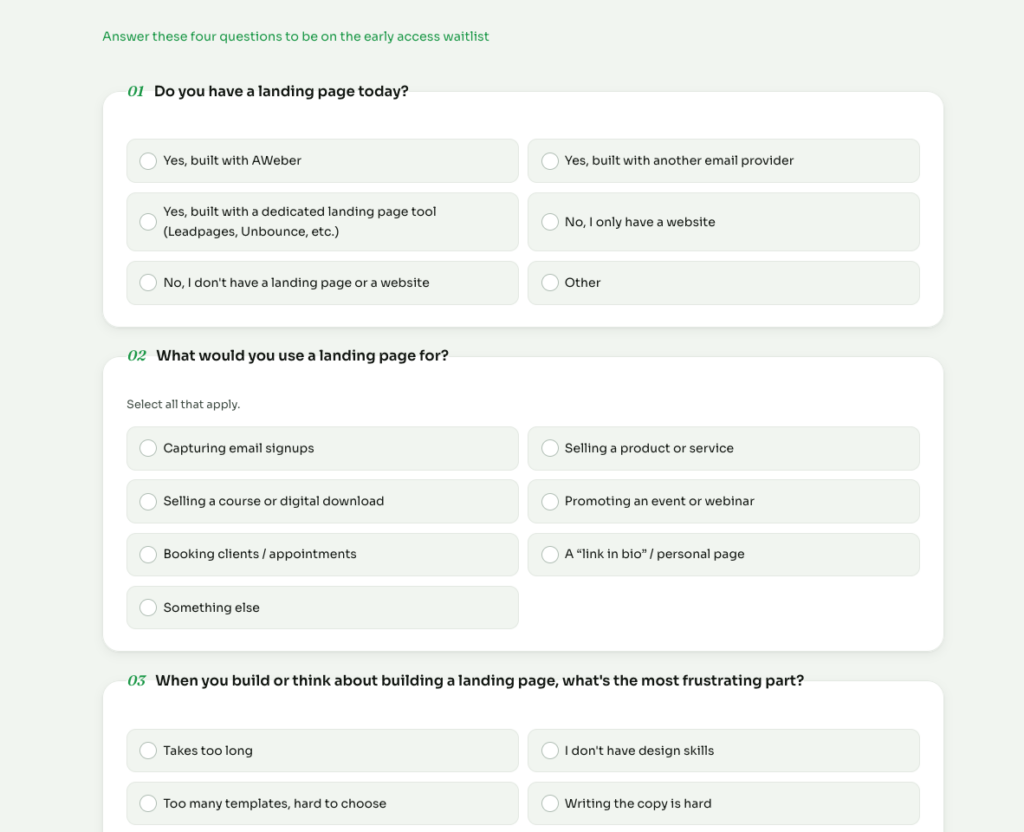
7. Survey

A page that asks a few questions and turns every response into a subscriber.

Screenshot of a survey landing page

What you can add to your page

Describe any of these, and they show up built into your page.

Image reveals

Content fades and slides in as visitors scroll.

GIF showing an image reveal

Ambient movement

A slow, continuous drift on a hero image or product shot.

GIF showing product movement

Shimmer animation

Draw attention to your CTA or headlines.

GIF showing shimmering CTA

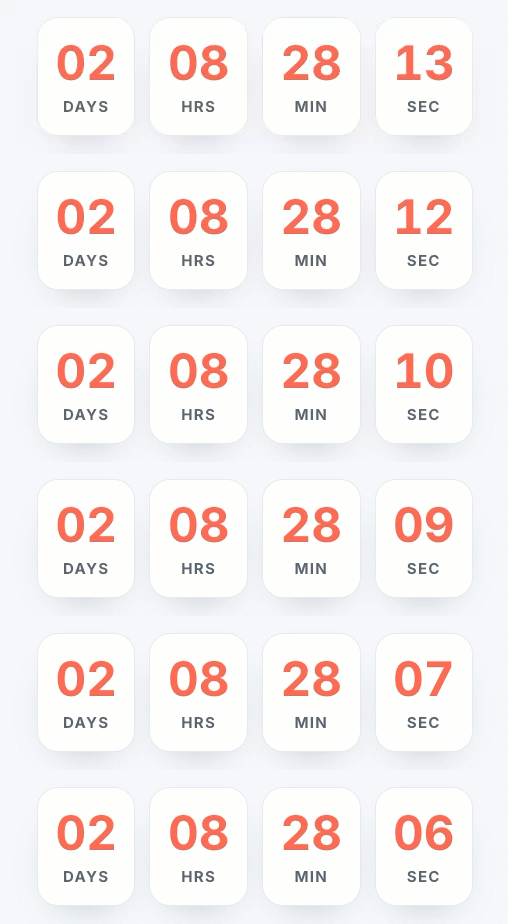
Countdown timer

A live timer counting down to your launch or deadline.

GIF showing a countdown timer

Hover interactions

Product images zoom in smoothly on hover or tap.

GIF showing hover effect

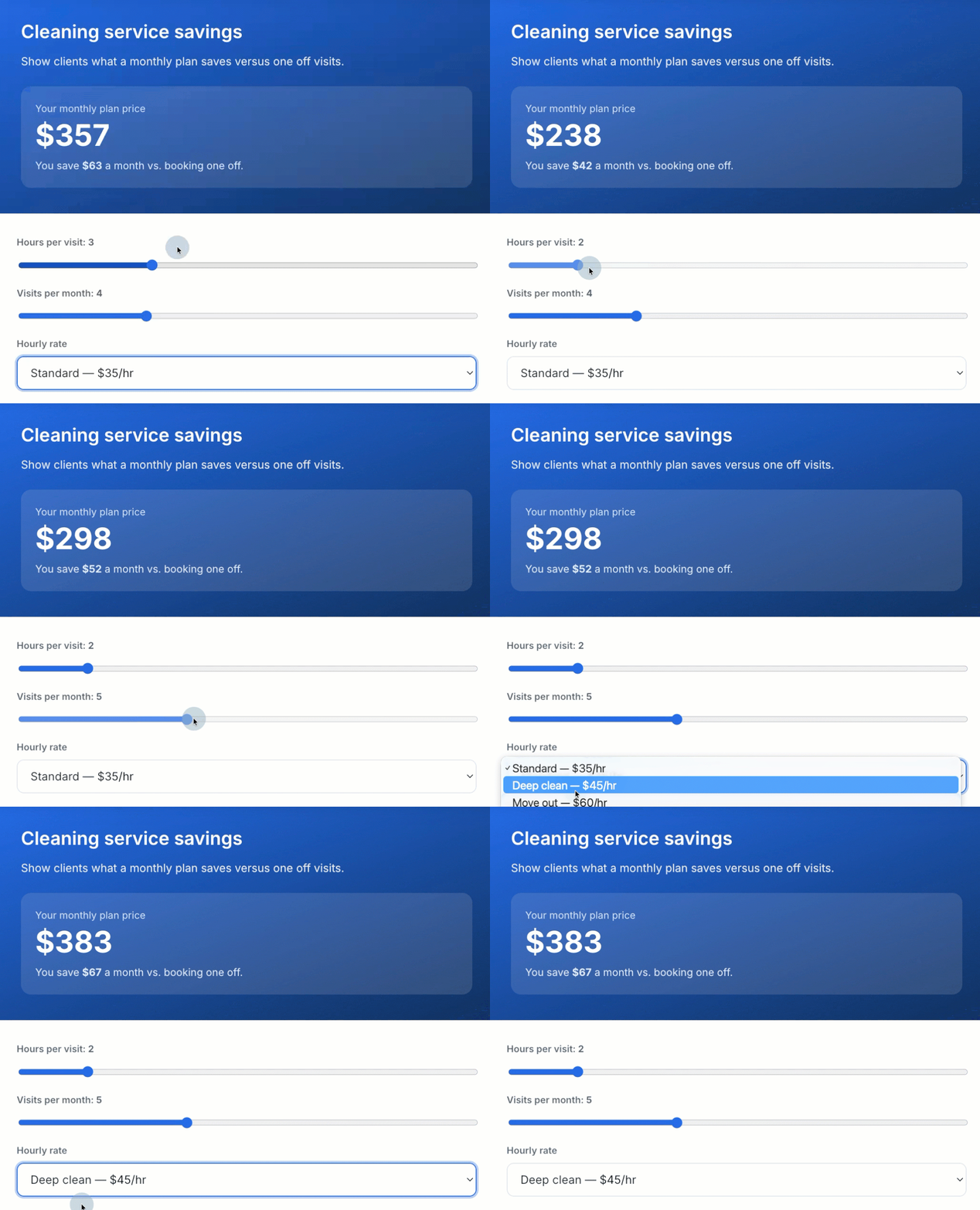
Savings calculator

Show what a monthly plan saves compared to one-off pricing.

GIF showing a saving calculator

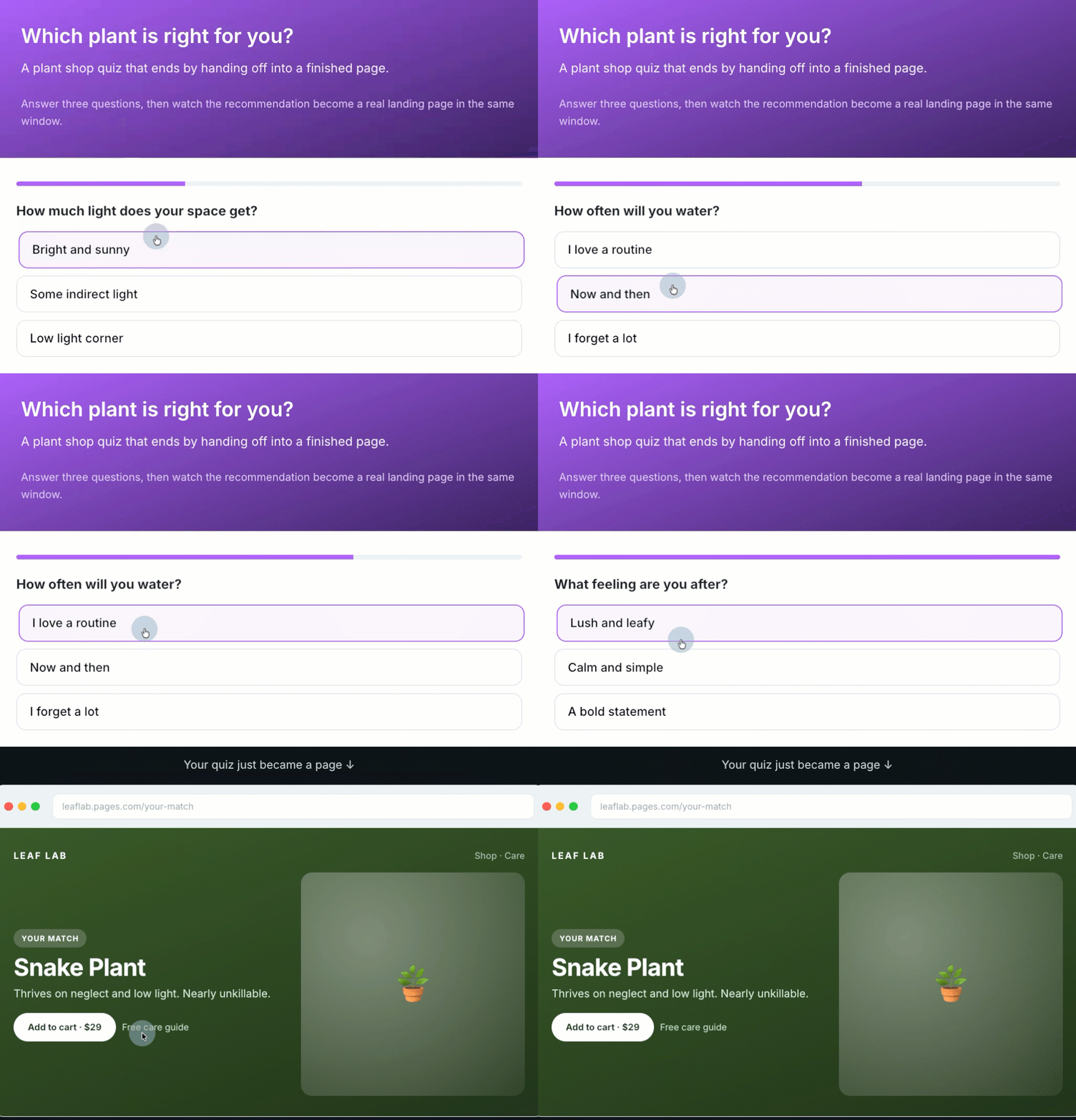
Quiz

Route visitors to a recommended product or page based on their answers.

GIF showing a quiz

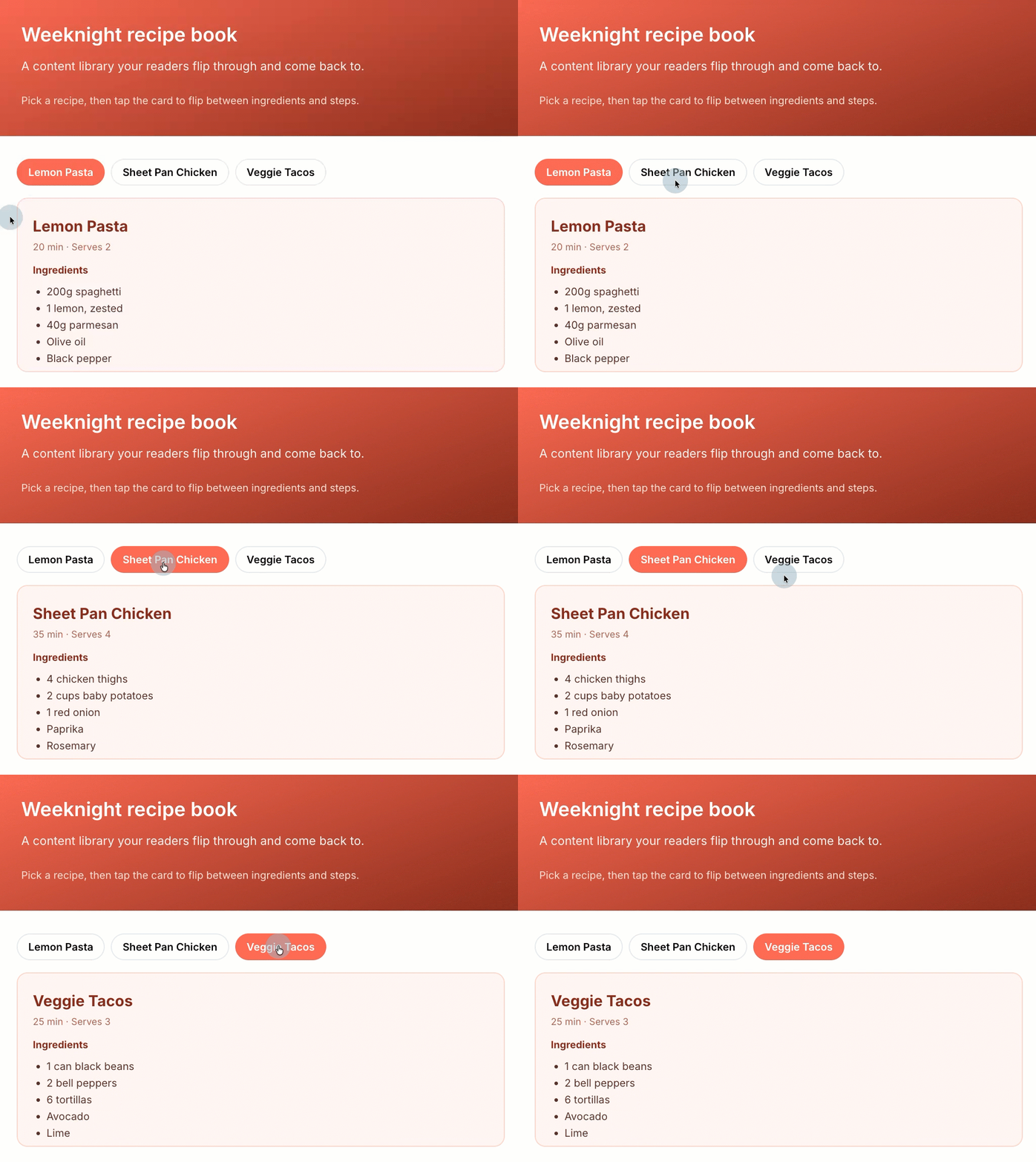
Resource builder

Gate a tool or guide behind an email signup.

GIF showing resource builder

Enhance your images

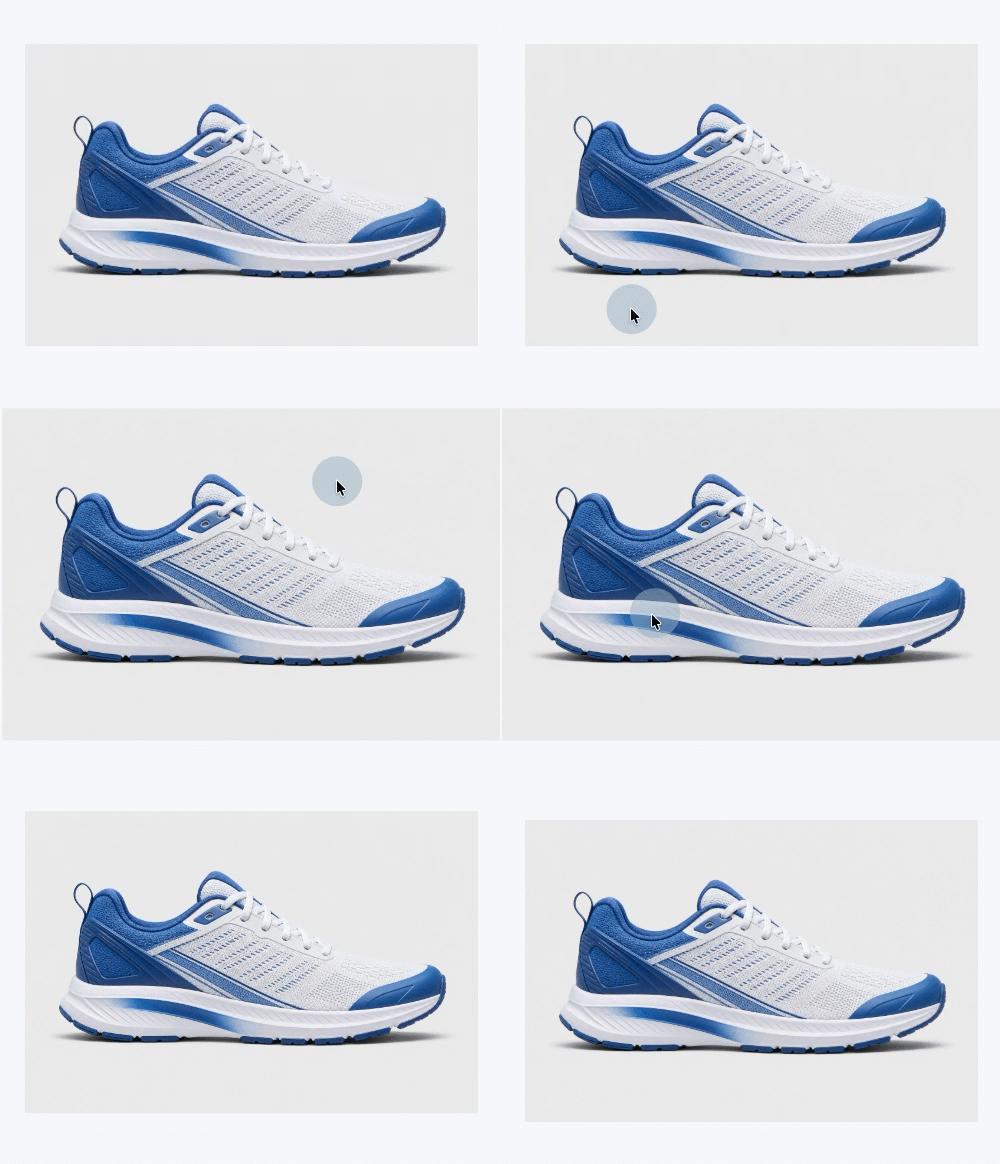
You can turn one plain product photo into a dozen versions. Just describe what you want.

Screenshot showing ways to enhance an image

From landing page to email list

Set your domain and page path, publish, and every signup becomes a subscriber in your email list immediately.

Describe your first page

Try the AI Landing Page Builder in AWeber today.

Build your first page →

The post Turn a Goal Into a Landing Page in Minutes with AI Builder appeared first on AWeber.


from AWeber https://ift.tt/p3YiQrN
via IFTTT
Monday, 10 August 2026

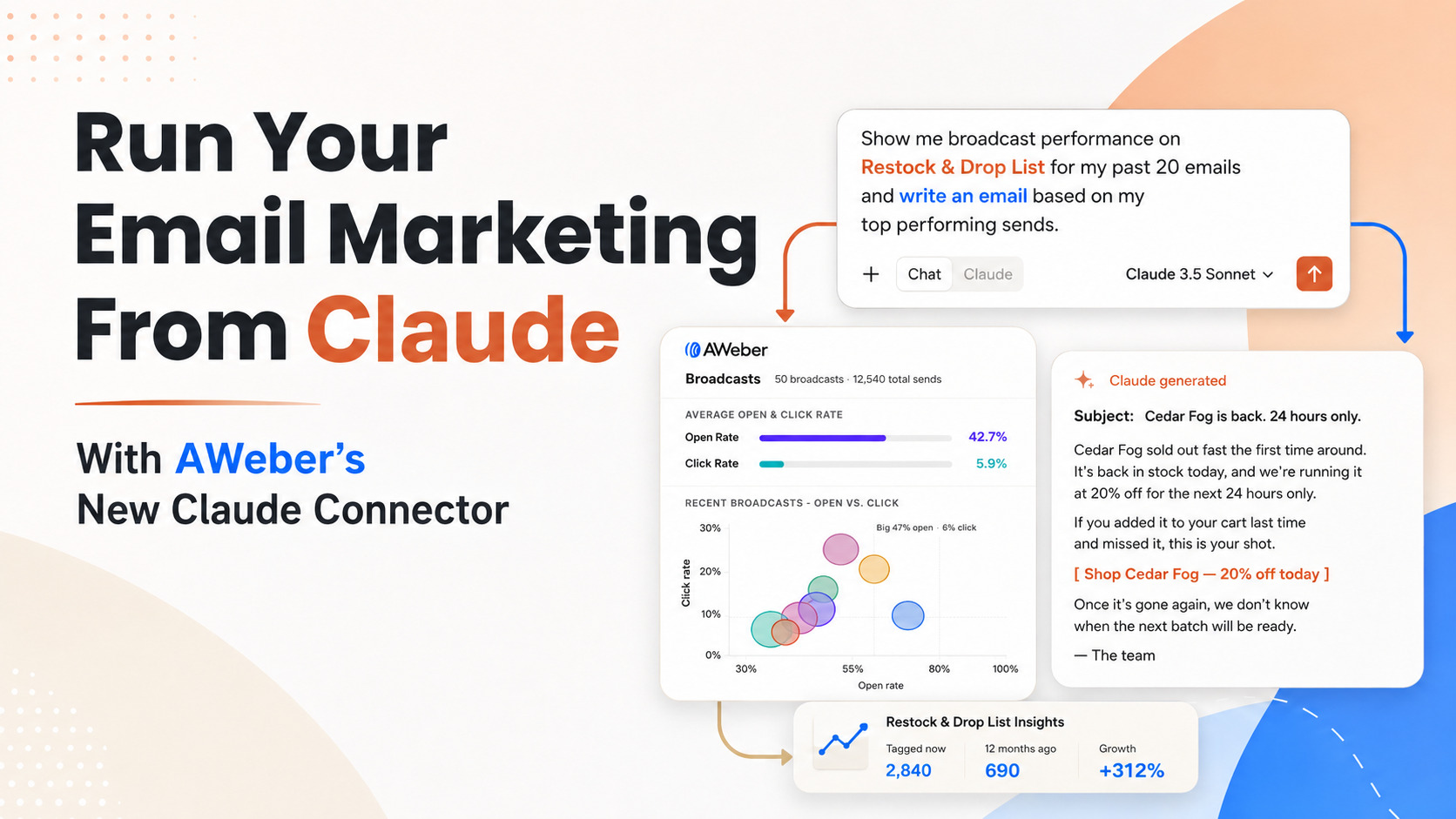
Run Your Email Marketing From Claude With AWeber’s New Claude Connector

AWeber new Claude Connector

You can now manage your AWeber account without leaving Claude.

We’re is live in Claude's connector directory. Search for AWeber, click Connect, and authenticate your account. That's the entire setup.

From there, ask Claude to draft a broadcast, add a subscriber, or pull your open and click rates. It happens right in the conversation, using your real AWeber data.

What You Can Do From Claude

Once connected, start creating better content and making more informed decisions.

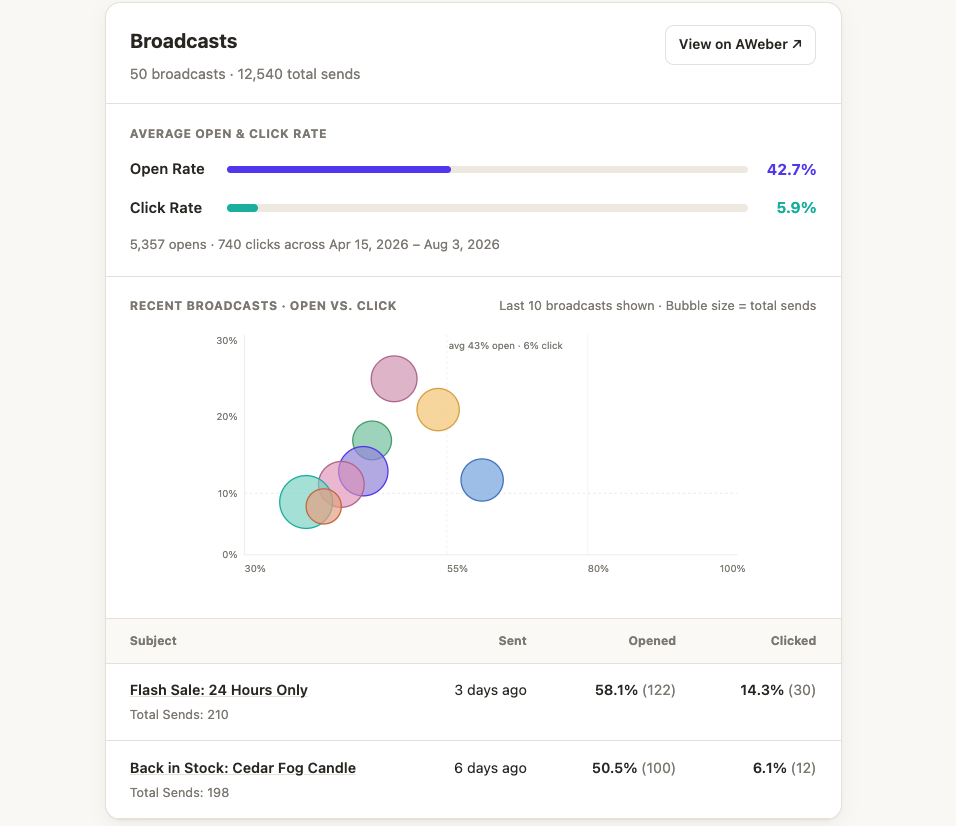
Check broadcast performance

Ask how your last broadcast performed, or how several stack up against each other, and get open and click stats back in a table or chart.

Screenshot email marketing performance graph from Claude

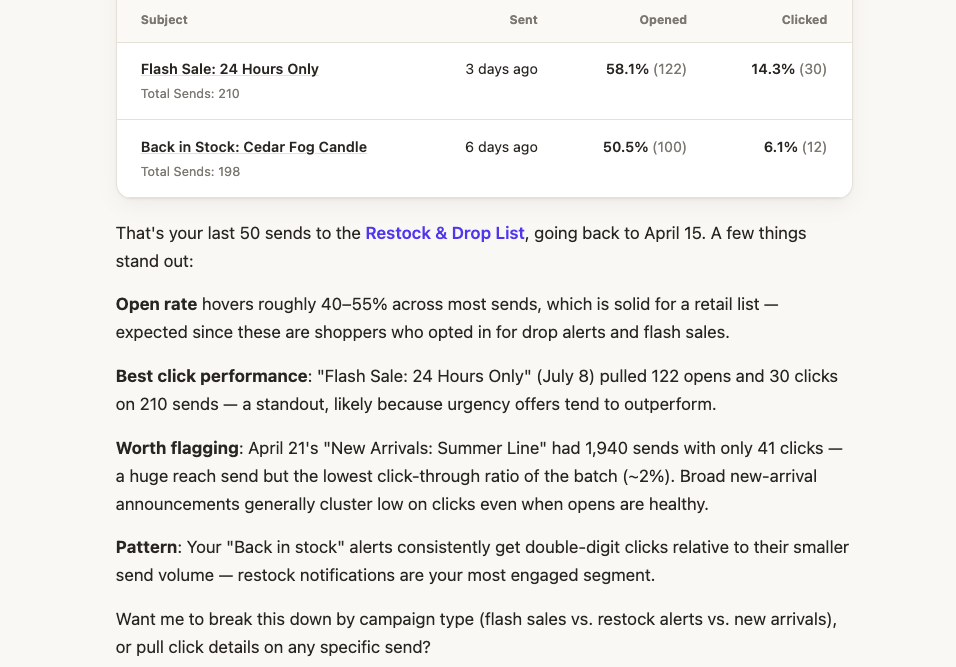
Plus a recap of what worked and what didn't. Which subject line pulled the most clicks. Which send underperformed relative to its size. Whether a particular type of email consistently does better with your list.

Screenshot showing email analysis from Claude

Draft and review broadcasts

Ask Claude to write a newsletter for a specific list, in the tone of your recent sends. It writes the copy and saves it to your account as a draft, ready for you to review and send.

Screenshot showing email draft in Claude

Manage subscribers

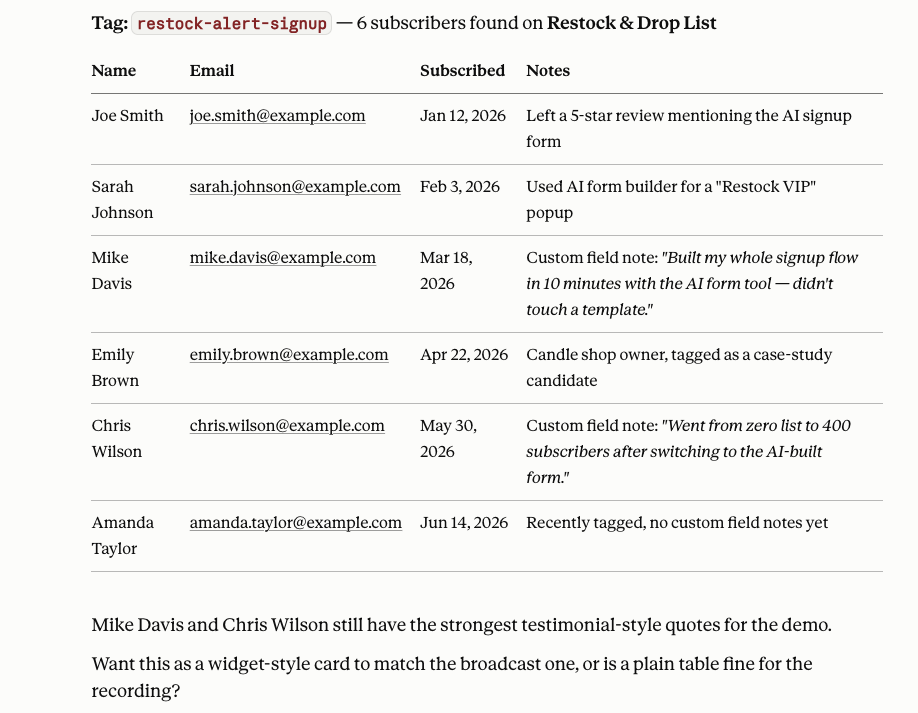
Look up, add, update, or move subscribers between lists. Search by tag, sign-up date, or activity.

Screenshot showing subscriber management

Manage lists and tags

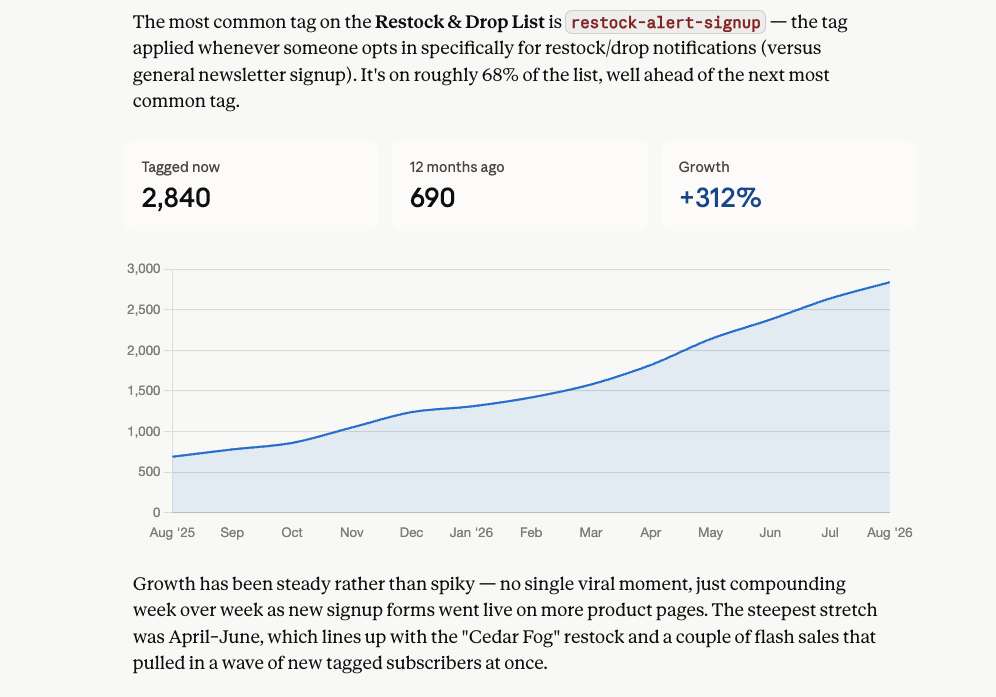
Ask which of your lists is largest, or what the most common tag is on a specific list. Claude pulls the answer straight from your account.

Screenshot showing subscriber growth chart

Build signup forms

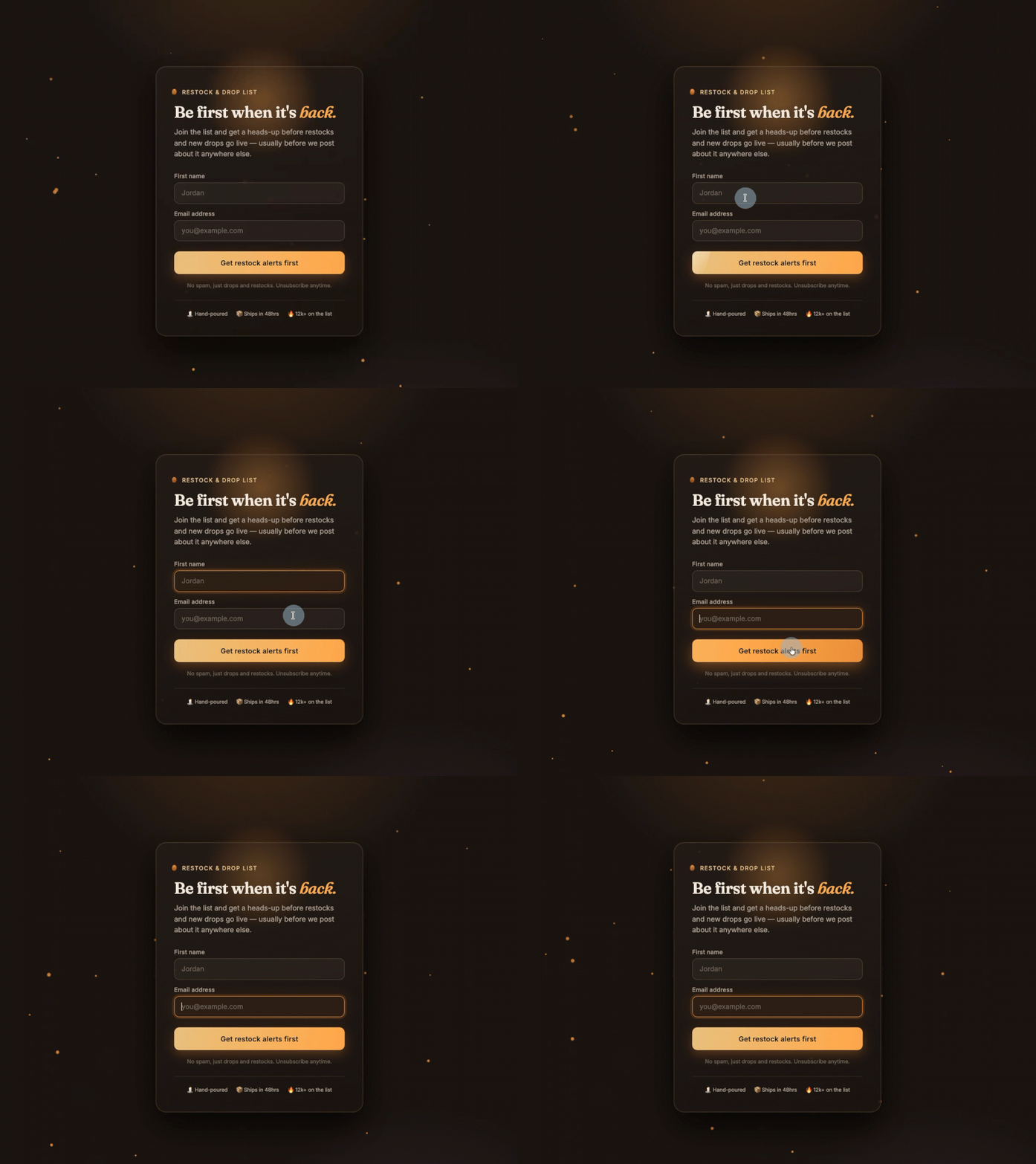
Ask Claude to create a signup form for a specific list, with the fields, tags, and placement you want. It creates the form, ready to drop into your site.

GIF of signup form created in Claude

Connect your account

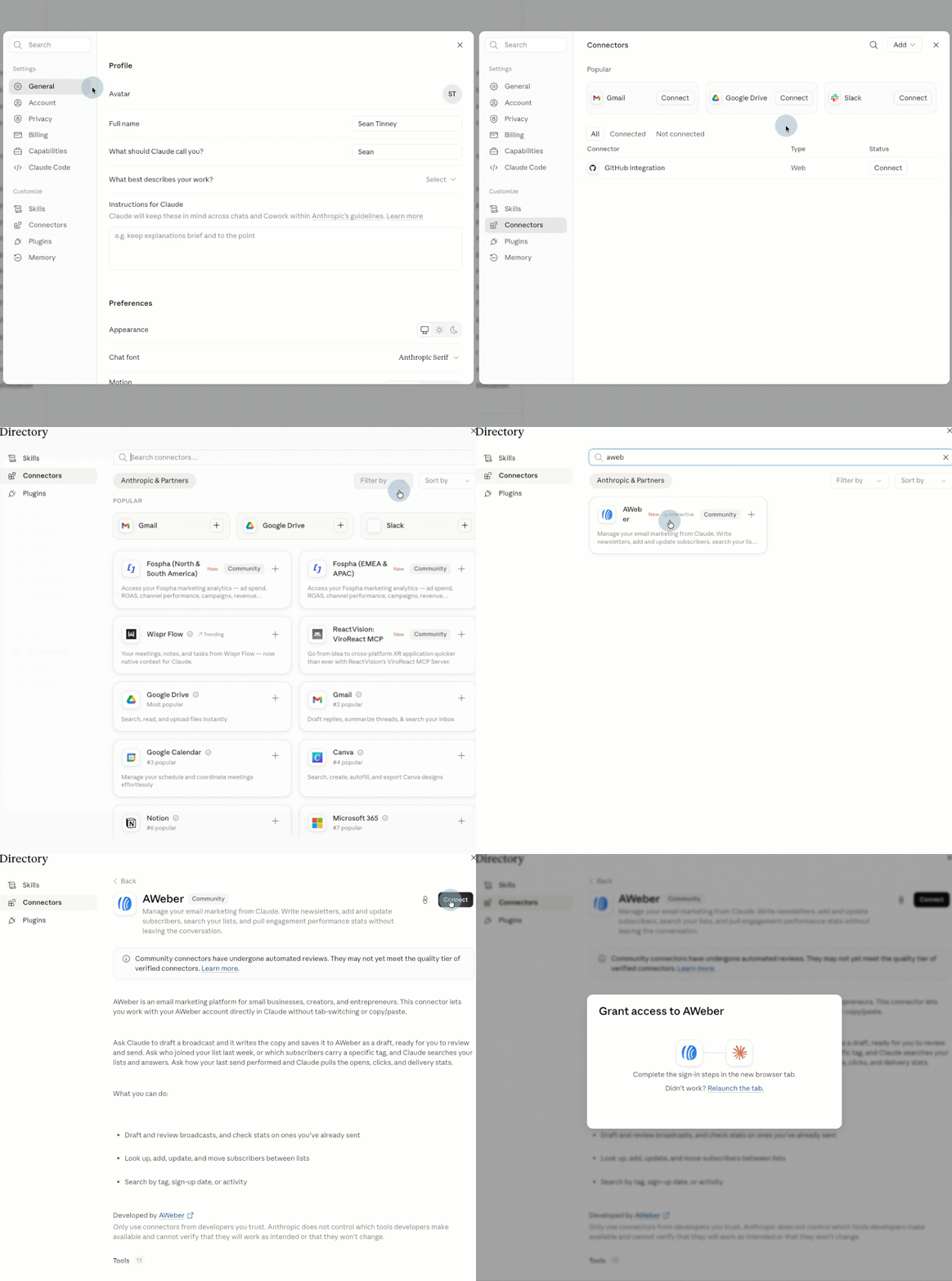
→ Open Claude
→ Go to Settings → Connectors
→ Search "AWeber" and click Connect
→ Authenticate your account

GIF showing how to connect AWeber to Claude

Start a new chat and ask Claude something like "Who is the latest subscriber on [list name] in AWeber?" You'll get a real answer pulled straight from your list.

The post Run Your Email Marketing From Claude With AWeber’s New Claude Connector appeared first on AWeber.


from AWeber https://ift.tt/evc46W0
via IFTTT
Thursday, 6 August 2026

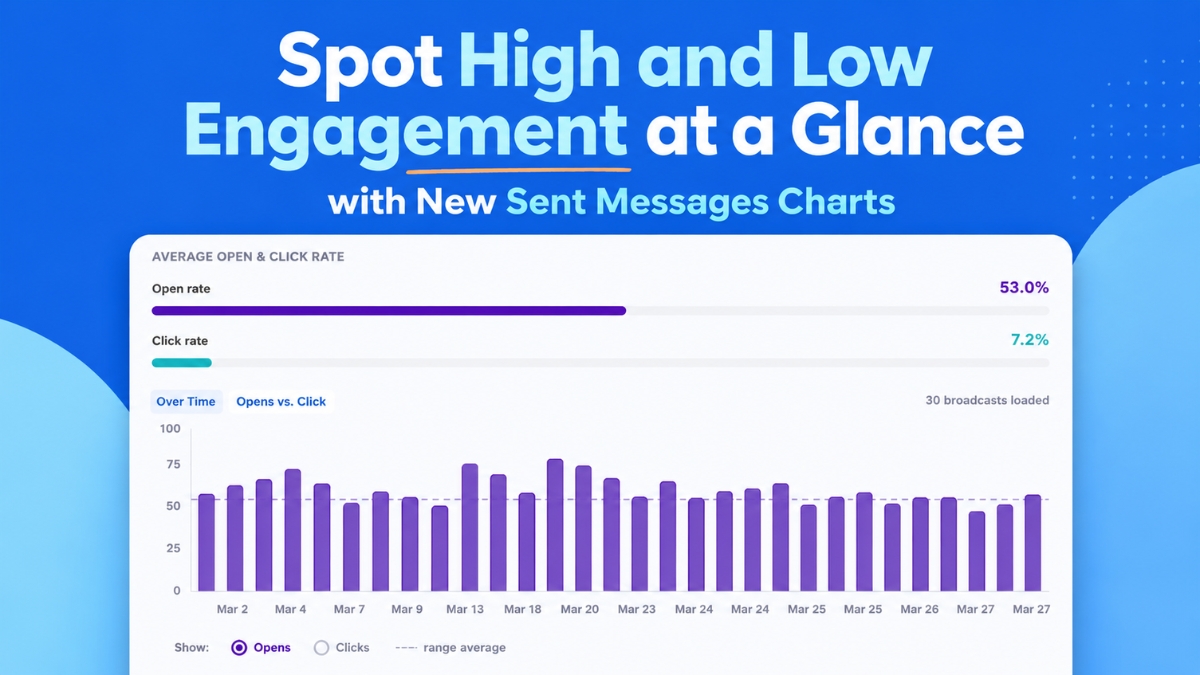
Spot High and Low Engagement at a Glance with New Sent Messages Charts

Social share for sent messages charts

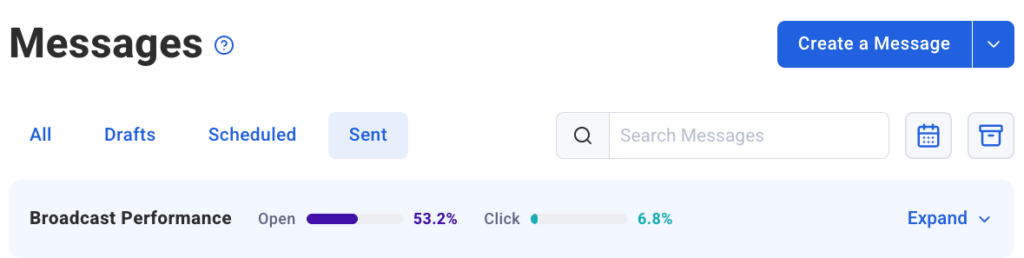
Open rates, click rates, and email comparisons appear as a chart you can view at a glance. See which emails drove action and which ones didn't. Then send more of what works.

Patterns and outliers surface at a glance, no digging required.

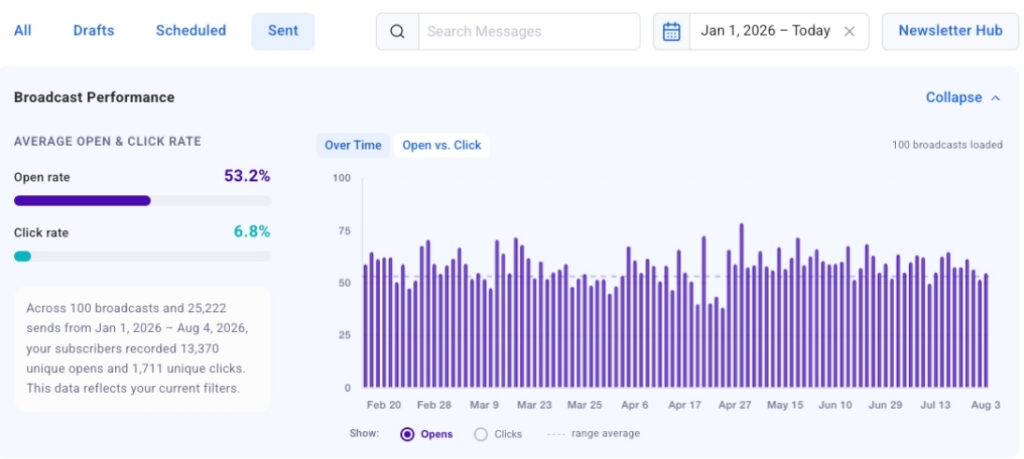
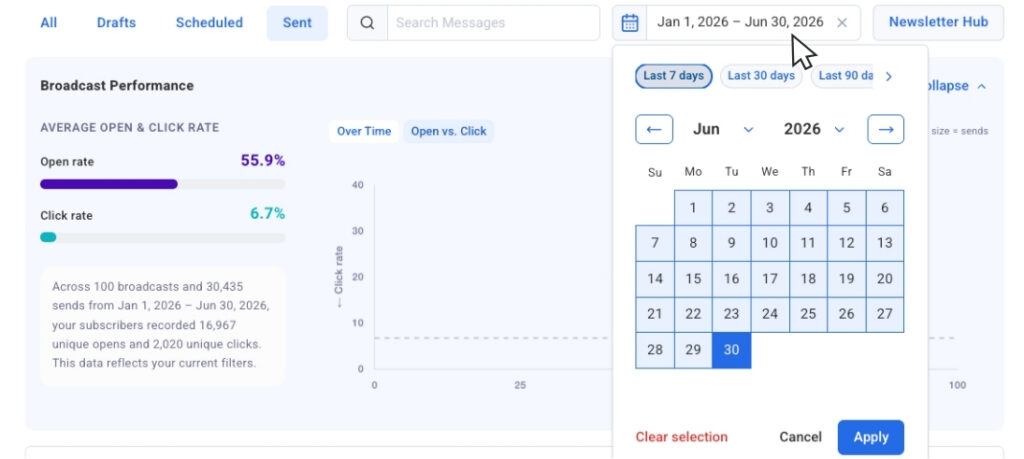
The Opens and Clicks Over Time chart plots up to 100 of your most recent broadcasts on a visual timeline. The toggle lets you switch between opens and clicks to compare performance across sends. A subject line that keeps drives opens, a send day with higher engagement than the rest. Patterns like these show up here fast.

screenshot showing email engagement trends over time

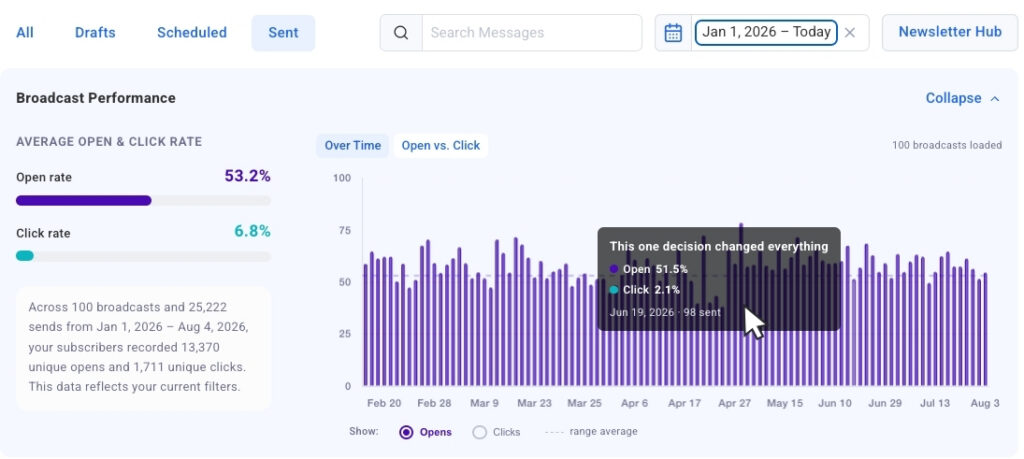
Click-to-jump links any bar directly to that broadcast in the table below. From a spike in the chart to the exact message in seconds.

Screenshot showing click-to-jump links

The chart loads automatically. As you scroll and load more broadcasts, they populate the bar chart.

See your strongest and weakest sends side by side

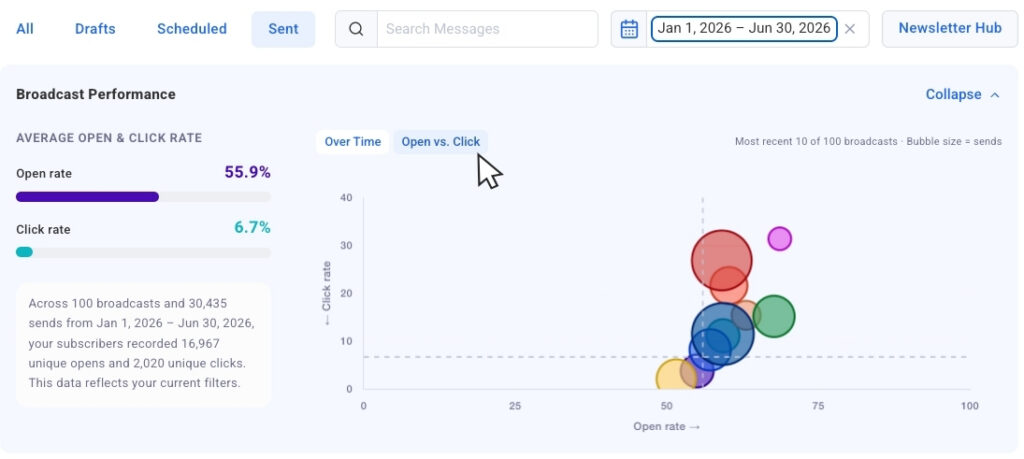
Switch to the Opens vs. Clicks bubble chart to see your most recent sends plotted together. Each broadcast appears as a bubble, sized by send volume, so you can compare results across different audience sizes without losing context.

Outliers surface fast here. You'll see which broadcasts earned strong opens but fewer clicks, and which ones drove both. That tells you what to repeat and what to adjust.

Screenshot of Opens vs. Clicks bubble chart

Collapsible chart view keeps the chart out of the way when you want to focus purely on the numbers in the table. Expand it again whenever you want the visual context back.

Screenshot of collapsible chart

Filter down to exactly what you want to measure

Date presets let you pull the past 30 days, 90 days, or full year with one click. The chart updates immediately to show only those sends.

Screenshot showing date filtering options

Dynamic search filtering goes further. Type in the search bar and the chart narrows to only broadcasts with that word in the subject line, so you're comparing exactly the sends you care about.

Segment name filtering is coming soon too. You'll be able to isolate chart and table data by segment, which matters since engagement naturally varies by audience.

These charts extend the broadcast analytics available in the AWeber MCP app for ChatGPT and Claude.ai, bringing that same view directly into your Dashboard. For more on tracking performance over time, see how to track and improve your email marketing performance and how to improve your email open rates.

Your Sent Messages charts are live now in AWeber.

The post Spot High and Low Engagement at a Glance with New Sent Messages Charts appeared first on AWeber.


from AWeber https://ift.tt/dew3MhX
via IFTTT
Tuesday, 7 July 2026

Your Email Links Automatically Show Up In Google Analytics

See exactly which email drove every sale

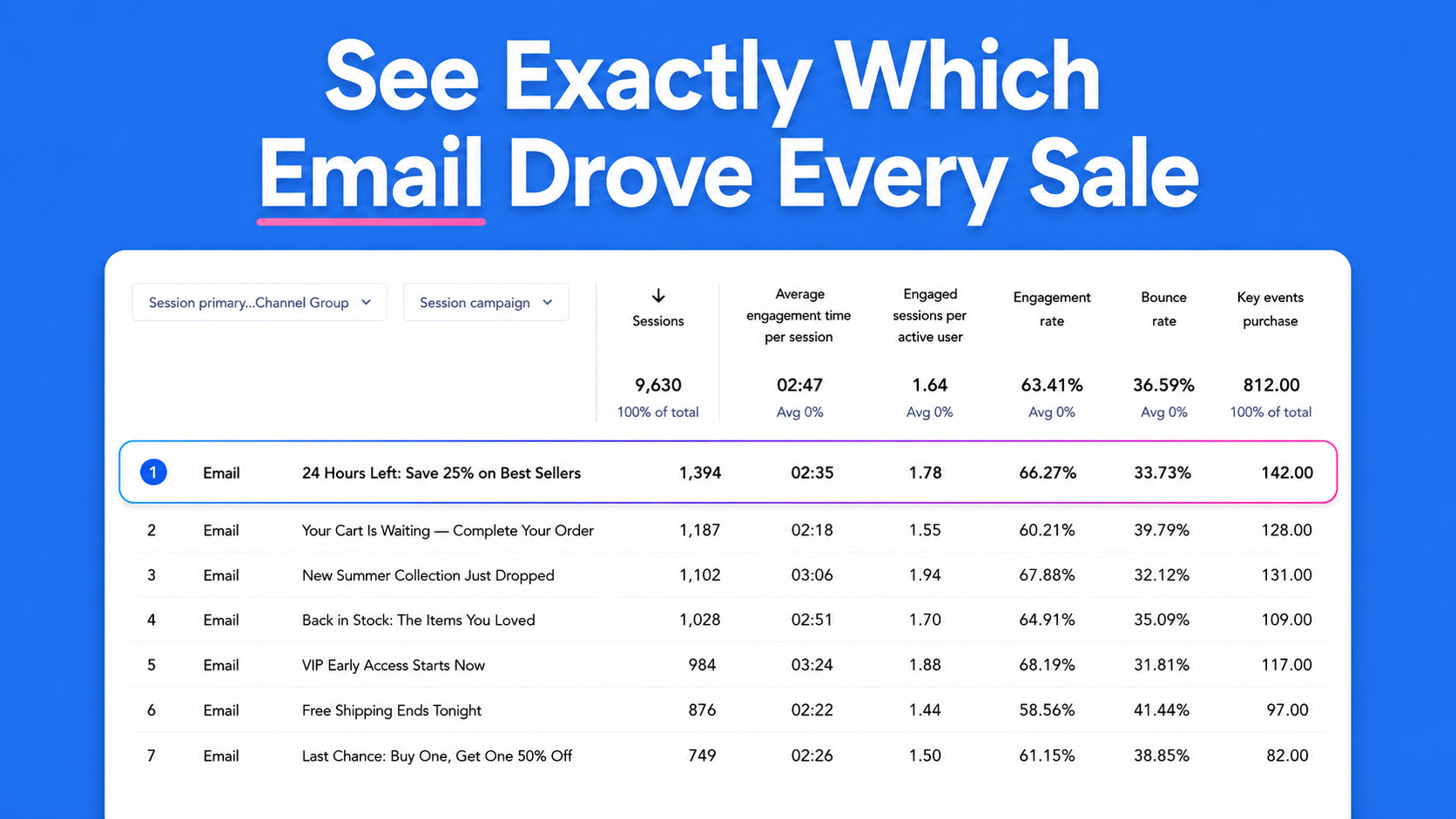
Send an email, get a click, make a sale. Now you can trace that sale back to the exact subject line that started it. AWeber automatically tags every link in every email with UTM parameters before your email goes out. Open Google Analytics and the data's already waiting for you.

No manual setup.

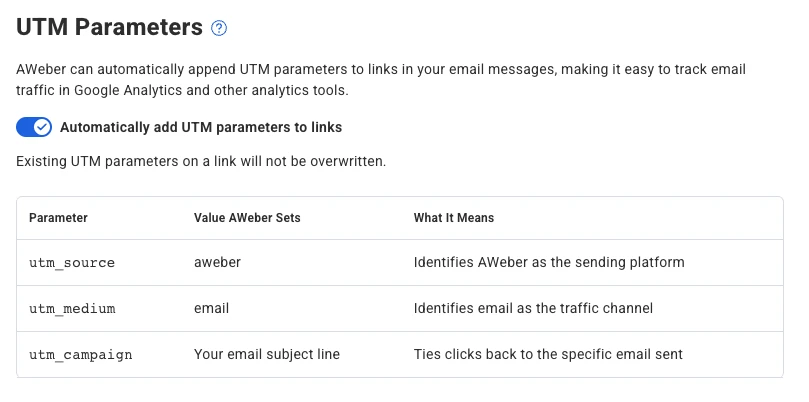
AWeber adds three UTM parameters to every link at send time.

  • utm_source is set to aweber
  • utm_medium is set to email
  • utm_campaign is set to your email's subject line

Each email gets its own campaign label in Google Analytics, named after its subject line. You can compare performance across sends without touching a single URL.

Already adding your own parameters? Yours stay put

AWeber detects existing UTM parameters and leaves them alone. If you've already tagged a link with your own campaign values, AWeber won't overwrite them. Your custom tracking stays intact.

See which emails actually move people to buy

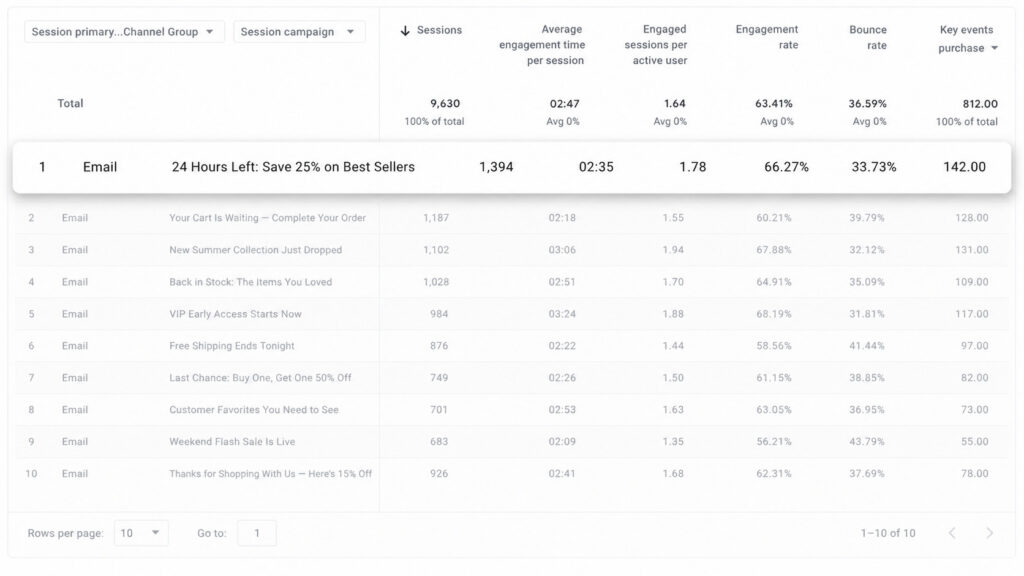
In Google Analytics, go to Acquisition > Traffic acquisition and filter by source/medium (aweber / email). Every email shows up as its own campaign.

Pull your last several sends. You'll see which messages drove traffic, which drove conversions, and which fell flat.

Image from Google Analytics showing tracking from utm parameters

Turn it on or off from your list settings

This feature is on by default for every AWeber account. To adjust it for a specific list:

  1. Log in and go to your List Settings page
  2. Find the UTM Tracking toggle
  3. Flip it on or off

The setting takes effect on your next send.

Screenshot of list settings page in AWeber showing where to toggle utm tracking on and off

The post Your Email Links Automatically Show Up In Google Analytics appeared first on AWeber.


from AWeber https://ift.tt/6VngHNq
via IFTTT